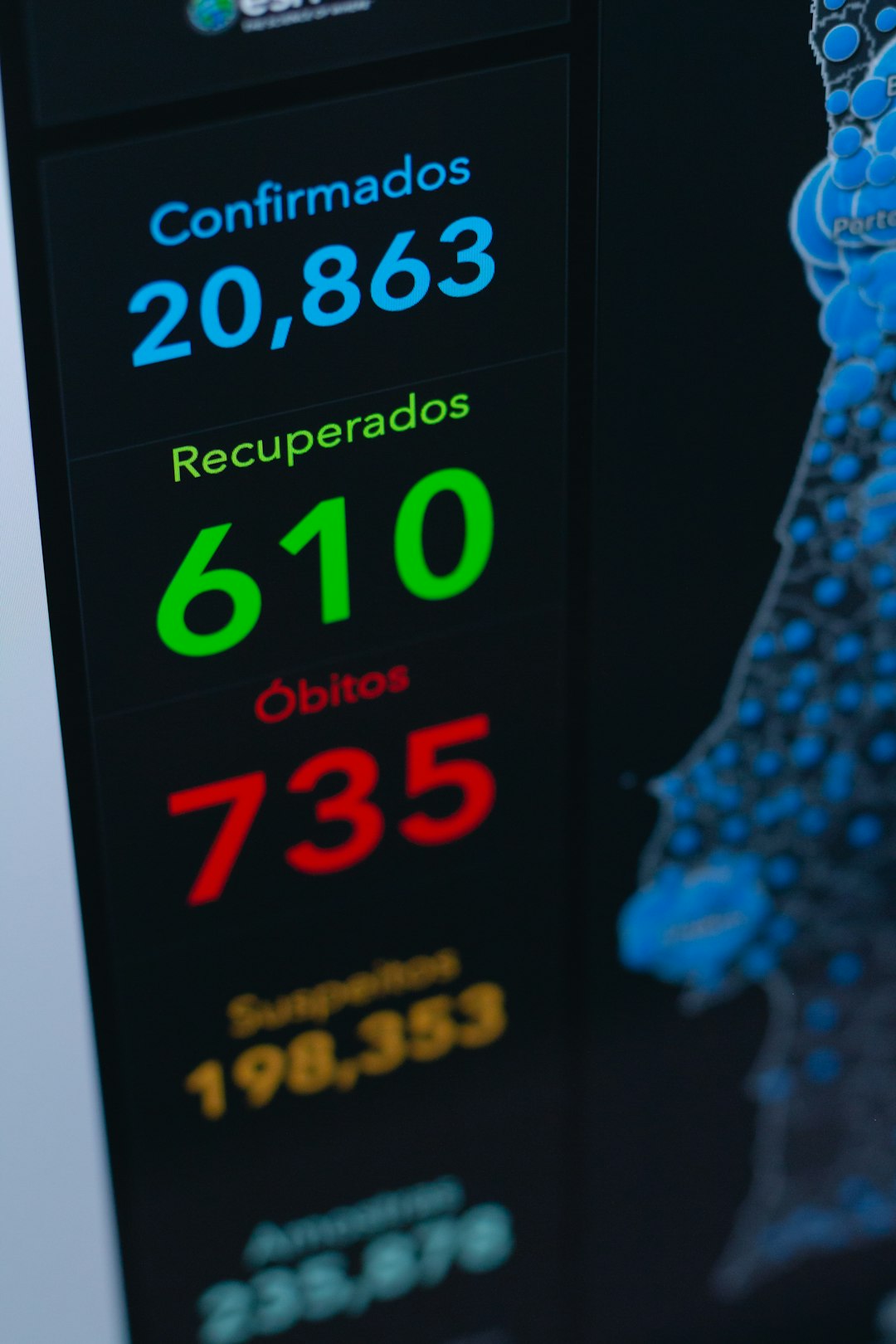
Animated number counters are a simple way to make statistics feel more dynamic on a landing page, dashboard, portfolio, or product page. CountUp.js is a lightweight JavaScript library that animates numbers from one value to another, with options for decimals, separators, prefixes, suffixes, easing, and scroll-based effects.
TLDR: CountUp.js helps a developer create smooth animated counters with very little code. A page needs a target HTML element, the CountUp.js script, and a small JavaScript setup that defines the starting and ending numbers. The library supports formatting options such as commas, currency symbols, decimals, and custom animation duration. It works well for stats sections, dashboards, donation totals, user counts, and performance metrics.
What CountUp.js Does
CountUp.js animates numeric values in the browser. Instead of showing a static number such as 10,000, the number can count upward from 0 to 10,000 over a short period of time. This creates visual interest and can help important metrics stand out.
The library is commonly used for:
- Business statistics, such as clients served or revenue generated
- Portfolio sections, such as completed projects or years of experience
- Dashboards, such as active users, sales totals, or conversion rates
- Fundraising pages, such as money raised or donations received
- Marketing pages, such as downloads, subscribers, or ratings
Basic HTML Setup
A CountUp.js counter starts with a simple HTML element. The element needs an id so the JavaScript code can find it and update its text content.
<div class="stats">
  <div class="stat-card">
    <span id="customers">0</span>
    <p>Happy Customers</p>
  </div>
</div>
In this example, the number inside <span id="customers"> will be animated. The initial value can be 0, because CountUp.js will replace it when the animation begins.
Adding CountUp.js with a CDN
The fastest way to use CountUp.js is through a CDN. A developer can load it as an ES module and create an animation in a script block.
<script type="module">
  import { CountUp } from 'https://cdnjs.cloudflare.com/ajax/libs/countup.js/2.8.0/countUp.min.js';

  const counter = new CountUp('customers', 12500);

  if (!counter.error) {
    counter.start();
  } else {
    console.error(counter.error);
  }
</script>
The first argument, 'customers', matches the HTML element id. The second argument, 12500, is the final value. When counter.start() runs, the number counts from the default starting value to the final value.
Installing CountUp.js with npm
For projects using a bundler such as Vite, Webpack, or Rollup, CountUp.js can be installed with npm.
npm install countup.jsAfter installation, the library can be imported into a JavaScript file:
import { CountUp } from 'countup.js';

const counter = new CountUp('customers', 12500);
counter.start();
This approach is usually preferred for modern applications because dependencies are managed through the project’s package system.
Using Formatting Options
CountUp.js becomes more useful when formatting options are added. A counter can display commas, decimal places, currency symbols, percentages, and custom duration values.
const options = {
  startVal: 0,
  decimalPlaces: 0,
  duration: 2.5,
  useGrouping: true,
  separator: ',',
  decimal: '.',
  prefix: '$',
  suffix: '+'
};

const revenueCounter = new CountUp('revenue', 250000, options);
revenueCounter.start();
This example animates to $250,000+. The duration value controls how long the animation takes in seconds. The prefix and suffix options make the result more meaningful without requiring extra HTML.
Useful options include:
- startVal: The number where the animation begins
- decimalPlaces: The number of digits shown after the decimal point
- duration: The length of the animation in seconds
- useGrouping: Whether large numbers use separators
- separator: The character used for grouping, such as a comma
- prefix: Text placed before the number
- suffix: Text placed after the number
Creating Multiple Counters
Many pages display multiple statistics in one section. Instead of writing separate code for each counter, a developer can store the settings in an array and loop through them.
<span id="projects">0</span>
<span id="users">0</span>
<span id="rating">0</span>
const counters = [
{ id: 'projects', value: 320, suffix: '+' },
{ id: 'users', value: 48000, suffix: '+' },
{ id: 'rating', value: 4.9, decimals: 1 }
];
counters.forEach(item => {
const count = new CountUp(item.id, item.value, {
suffix: item.suffix || '',
decimalPlaces: item.decimals || 0,
duration: 2
});
if (!count.error) {
count.start();
}
});This structure keeps the code organized and makes it easier to add or remove counters later.
Image not found in postmetaStarting the Animation on Scroll
A counter should often start only when it becomes visible. If the animation begins before the visitor reaches the section, the effect may be missed. The Intersection Observer API can solve this by detecting when the counter section enters the viewport.
const section = document.querySelector('.stats-section');

const observer = new IntersectionObserver(entries => {
  entries.forEach(entry => {
    if (entry.isIntersecting) {
      const count = new CountUp('customers', 12500, {
        duration: 2,
        separator: ','
      });

      if (!count.error) {
        count.start();
      }

      observer.unobserve(section);
    }
  });
}, {
  threshold: 0.4
});

observer.observe(section);
The threshold value of 0.4 means the animation starts when about 40% of the section is visible. The unobserve method prevents the animation from restarting every time the visitor scrolls away and back.
Adding Basic Styling
CountUp.js handles the number animation, but CSS controls the presentation. A clean card layout can make the counters easier to scan.
.stats-section {
  display: flex;
  gap: 24px;
  justify-content: center;
  padding: 60px 20px;
}

.stat-card {
  background: #ffffff;
  border-radius: 16px;
  padding: 30px;
  text-align: center;
  box-shadow: 0 10px 30px rgba(0, 0, 0, 0.08);
}

.stat-card span {
  display: block;
  font-size: 42px;
  font-weight: 700;
  color: #2563eb;
}

.stat-card p {
  margin-top: 10px;
  color: #555;
}
The numbers should be large enough to attract attention, while the labels should explain what the metrics represent. Strong contrast, clear spacing, and consistent alignment improve readability.
Common Mistakes to Avoid
- Using the wrong element id: The id in JavaScript must match the HTML id exactly.
- Starting too early: Counters placed below the fold should usually start on scroll.
- Overusing animation: Too many animated numbers can distract from the content.
- Ignoring accessibility: The final number should still be understandable if animation is disabled or missed.
- Choosing unrealistic duration: Very slow counters can feel tedious, while very fast counters may be unnoticed.
Best Practices
The best CountUp.js implementations are subtle, fast, and meaningful. A developer should animate only important numbers and keep durations between 1.5 and 3 seconds in most cases. Large values should use grouping separators, while financial numbers should include a currency prefix when appropriate. When counters are used as proof points, the surrounding text should provide context so the numbers do more than simply look impressive.
FAQ
- What is CountUp.js?
- CountUp.js is a JavaScript library that animates numbers from a starting value to an ending value.
- Is CountUp.js suitable for beginners?
- Yes. A basic counter requires only an HTML element, the library import, and a few lines of JavaScript.
- Can CountUp.js show currency or percentages?
- Yes. It supports prefixes such as
$and suffixes such as%or+. - Can the animation start when the counter appears on screen?
- Yes. The Intersection Observer API can trigger the animation when the counter section enters the viewport.
- Does CountUp.js work with modern JavaScript frameworks?
- Yes. It can be used in framework-based projects through npm, although the exact setup depends on the framework.
Leave a Reply