When a WordPress site breaks, it rarely happens at a convenient time. One moment your pages are loading smoothly, and the next you are staring at a blank screen, broken layout, missing images, or a warning from your browser. The good news is that many WordPress problems have familiar causes, and with a calm, step-by-step approach, you can often fix them without rebuilding your entire website.
TLDR: Most WordPress issues come from plugin conflicts, outdated themes, server limits, caching problems, or security vulnerabilities. For example, if a site suddenly shows a critical error after installing a plugin, disabling that plugin through the hosting file manager can often bring the site back within minutes. In many small business cases, improving hosting, updating plugins, and compressing images can reduce page load time by 30% to 60%. Start by backing up your site, then diagnose one possible cause at a time.
1. The White Screen of Death
The white screen of death is one of the most alarming WordPress problems because it gives you almost no information. Instead of your homepage or dashboard, you see a blank white page. This usually means a PHP error has occurred, often caused by a plugin, theme, or memory limit issue.
To fix it, start with the safest action: disable your plugins. If you cannot access the WordPress dashboard, log in to your hosting control panel or use FTP. Go to wp-content and rename the plugins folder to something like plugins-old. If the site comes back, one of the plugins is responsible. Rename the folder back, then disable plugins one by one until you find the culprit.
You can also increase the WordPress memory limit by editing the wp-config.php file and adding:
define('WP_MEMORY_LIMIT', '256M');
If that works, your site may have outgrown its current hosting resources.
2. Plugin Conflicts
Plugins are one of WordPress’s greatest strengths, but they are also a common source of trouble. A plugin may conflict with another plugin, your active theme, or the latest version of WordPress. Symptoms can include broken forms, failed checkouts, missing buttons, dashboard errors, or unusual layout changes.
Use this troubleshooting checklist:
- Update everything, including WordPress core, plugins, and themes.
- Deactivate recently installed plugins first.
- Switch to a default theme, such as Twenty Twenty-Four, to test theme compatibility.
- Clear all caches, including plugin cache, browser cache, and server cache.
- Check plugin support pages for known bugs or compatibility notices.
A useful rule is: install only what you need. A website with 45 plugins has far more potential conflict points than a site with 12 carefully chosen plugins.
3. Slow Website Speed
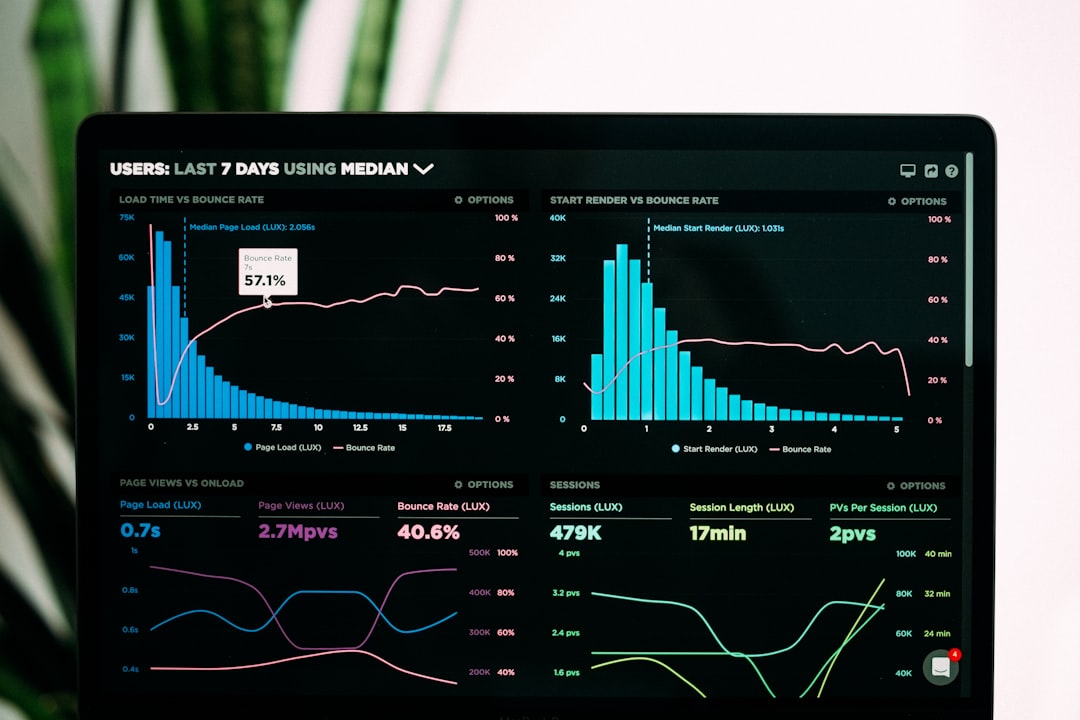
A slow WordPress site frustrates visitors and can hurt search visibility. Common causes include large images, low-quality hosting, bloated themes, too many plugins, and poor caching. If your site takes more than three seconds to load, many users will leave before seeing your content.
Start by testing your site with a speed analysis tool. Look for large image files, render-blocking scripts, and slow server response times. Then apply these fixes:
- Compress images before uploading them or use an image optimization plugin.
- Enable caching so pages load faster for repeat visitors.
- Use a content delivery network if your audience is spread across regions.
- Remove unused plugins and themes.
- Upgrade hosting if your server response time is consistently slow.
For example, a photography portfolio with 6 MB homepage images may load in eight seconds. After converting images to WebP and enabling caching, the same page might load in under three seconds.
4. “Error Establishing a Database Connection”
This message means WordPress cannot connect to its database. Since the database stores your posts, pages, settings, products, and users, the site cannot function without it.
The most common causes are incorrect database credentials, a corrupted database, or a hosting server issue. Open the wp-config.php file and check these values:
DB_NAMEDB_USERDB_PASSWORDDB_HOST
If you recently migrated the site or changed hosting, one of these values may be wrong. If the settings are correct, contact your hosting provider to ask whether the database server is down. You can also try WordPress’s database repair feature by adding this line to wp-config.php:
define('WP_ALLOW_REPAIR', true);
Then visit yourdomain.com/wp-admin/maint/repair.php. Remember to remove the line after the repair is complete.
5. Broken Layout After an Update
Sometimes a site looks perfect before an update and messy afterward. Fonts change, columns collapse, menus disappear, or buttons lose their styling. This usually points to a theme issue, page builder conflict, or cached files loading incorrectly.
First, clear your cache. If you use a caching plugin, clear it there. If your host provides server-level caching, clear that too. Next, clear your browser cache or test the site in a private window. If the problem remains, check whether your theme has an available update.
If you use a page builder, make sure its companion plugins are also updated. Many layout problems occur when the builder is updated but its add-ons are not.
6. Login Problems
Being locked out of your WordPress dashboard can feel serious, but it is often easy to fix. If you forgot your password, use the password reset link on the login page. If that email never arrives, you can reset the password from your hosting database tool, usually phpMyAdmin.
If the login page refreshes without logging you in, cookies or cache may be the issue. Clear your browser cookies and try again. Also check whether a security plugin has limited login attempts or blocked your IP address.
Another common issue is a changed login URL. Some security plugins hide the default /wp-admin or /wp-login.php page. If you or another admin enabled this feature, look for the custom login URL in your notes or hosting files.
7. Malware and Security Warnings
If visitors see warnings such as “This site may be hacked” or “Deceptive site ahead,” act quickly. Malware can redirect users, inject spam links, steal data, or damage your reputation.
Begin by putting the site into maintenance mode if needed. Then scan it with a reputable security plugin or your hosting provider’s malware scanner. Remove unknown admin users, change all passwords, and update every plugin, theme, and WordPress core file.
Security cleanup should include:
- Checking recently modified files for suspicious code.
- Removing abandoned plugins that no longer receive updates.
- Changing hosting, FTP, database, and admin passwords.
- Enabling two-factor authentication for admin accounts.
- Submitting a review request to search engines after cleanup.
Prevention matters. Keep regular backups, avoid nulled themes or plugins, and limit administrator access to people who truly need it.
8. Missing Images or Media Library Errors
If images disappear or new uploads fail, the problem may involve file permissions, storage limits, or an incorrect media path. In WordPress, folders generally need permissions set to 755, while files are commonly set to 644.
Check whether your hosting account has reached its storage limit. Also inspect the uploads folder inside wp-content. If permissions are incorrect, WordPress may be unable to save new files.
For mixed content warnings, where images fail after switching from HTTP to HTTPS, update your site URLs and replace old HTTP links in the database with HTTPS versions.
9. The Safe Way to Fix a WordPress Site
Before making changes, create a full backup of both files and database. This is the difference between a manageable repair and a disaster. If possible, use a staging site to test fixes before applying them live.
Follow this order when troubleshooting:
- Back up the site.
- Write down what changed recently, such as updates, new plugins, or hosting changes.
- Check error messages and server logs.
- Disable plugins and test.
- Switch themes temporarily and test.
- Repair database or file permissions if needed.
- Restore from backup only if repairs fail.
When to Ask for Professional Help
You can fix many WordPress problems yourself, but some situations require expert support. If your site handles payments, stores personal data, or receives heavy traffic, avoid risky trial-and-error repairs. Malware infections, database corruption, repeated crashes, and failed migrations are all good reasons to bring in a professional.
WordPress is flexible, powerful, and repairable. Most problems have a logical cause, even when they look chaotic at first. By backing up your site, changing one thing at a time, and watching for patterns, you can turn a stressful website failure into a clear repair process—and keep your site healthier in the future.
Leave a Reply