If you have ever been watching a video, joining a call, editing a podcast, or streaming music on a Mac and suddenly seen a message about an audio renderer error, you are not alone. The phrase sounds technical and slightly mysterious, but it usually points to one simple idea: your Mac, your browser, or an audio app has temporarily lost the ability to send sound correctly to your speakers, headphones, or external audio device.
TLDR: An audio renderer error on Mac means the system or app cannot properly process and output sound at that moment. It often happens because of browser glitches, conflicting audio devices, sample rate mismatches, Bluetooth issues, external interfaces, or temporary Core Audio problems. In most cases, it is not a sign of permanent hardware failure, but rather a communication breakdown between software and audio output. Restarting the browser, switching output devices, or resetting audio services often clears it.
What Does “Audio Renderer Error” Actually Mean?
An audio renderer is the part of a system or application responsible for taking digital audio data and turning it into something your output device can play. In simpler terms, it is the final stage of the audio chain before sound reaches your MacBook speakers, AirPods, USB headset, monitor speakers, HDMI device, or audio interface.
When an app says there is an audio renderer error, it usually means the app tried to send audio to the selected output device but failed. This failure might happen inside the browser, inside macOS audio services, or between your Mac and a connected device. The message is especially common in web browsers when playing videos on platforms such as YouTube, but similar problems can appear in video conferencing apps, music software, games, and media players.
The important thing to understand is that the error does not always identify the exact cause. It is more like a warning light on a car dashboard. It tells you something went wrong in the audio path, but it does not automatically tell you whether the issue is the browser, Bluetooth headphones, an audio driver, a background app, or a system setting.

How Audio Works on a Mac
To understand why this error happens, it helps to know how macOS handles sound. Macs use a system called Core Audio, which manages audio input and output across the operating system. Core Audio is one reason Macs are popular among musicians, podcasters, filmmakers, and editors: it is generally stable, low latency, and capable of handling professional audio workflows.
When you play a video or song, this is roughly what happens:
- The app or browser decodes the audio from the file, stream, or website.
- macOS Core Audio receives and processes the audio stream.
- The selected output device receives the signal, whether it is built-in speakers, headphones, HDMI, Bluetooth, or USB.
- The device hardware converts the digital signal into sound you can hear.
If any link in that chain becomes unavailable, confused, overloaded, or incompatible, the result can be an audio renderer error. Sometimes the sound stops completely. Sometimes the video keeps playing silently. Other times the app may ask you to restart your computer, even though a full restart is not always necessary.
Why the Error Often Appears in Browsers
Many Mac users first encounter this issue in a browser. You may be watching a video and suddenly see a message such as “Audio renderer error. Please restart your computer.” Although the wording can sound dramatic, the browser may simply have lost its connection to the audio output device.
Modern browsers are complex. They handle video decoding, audio playback, web permissions, tabs, extensions, hardware acceleration, and background processes all at once. If one tab, extension, or media process crashes or becomes unstable, audio playback can fail while the rest of the browser still appears normal.
This is why closing and reopening the tab sometimes works. In other cases, quitting the browser completely is required because the broken audio process remains active in the background. If the browser is using outdated cached data, conflicting extensions, or experimental settings, the problem may return repeatedly.
Common Causes of Audio Renderer Errors on Mac
An audio renderer error can have several causes. Some are minor and temporary; others are tied to hardware, system settings, or professional audio setups. Here are the most common reasons it happens.
1. Temporary Core Audio Glitches
Core Audio is reliable, but it is still software. Occasionally, the audio service can become stuck or confused, especially after sleep mode, switching devices, joining calls, or connecting and disconnecting accessories. When this happens, an app may not be able to access the audio output correctly.
This is one reason restarting the Mac often solves the error. A restart reloads the audio service and clears temporary conflicts. However, the need to restart does not mean the Mac is damaged. It usually means the audio system needs to be refreshed.
2. Switching Between Audio Output Devices
Macs often juggle multiple audio destinations: internal speakers, wired headphones, AirPods, Bluetooth speakers, USB microphones, docking stations, HDMI monitors, and external DACs. Each device has its own capabilities and connection behavior.
If you switch from one device to another while audio is playing, the browser or app may fail to follow the change smoothly. For example, unplugging a USB headset during a video or closing the lid while connected to an HDMI display can interrupt the audio route. The app may still be trying to send sound to a device that is no longer available.
3. Bluetooth Audio Instability
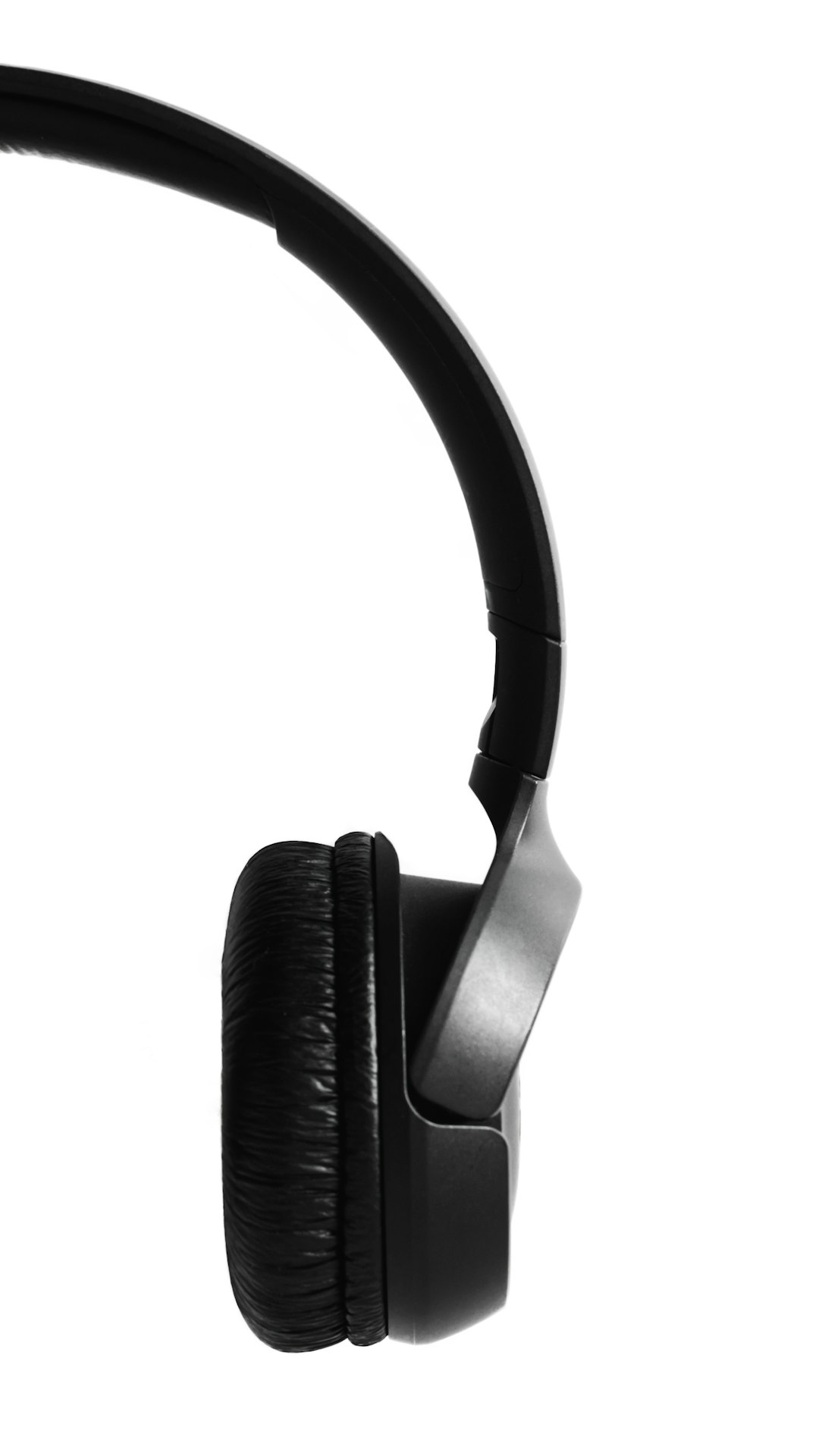
Bluetooth headphones and speakers are convenient, but they add another layer of complexity. The connection must handle pairing, signal strength, codec negotiation, battery status, and sometimes microphone mode. If your Mac switches AirPods from high quality listening mode to call mode, for example, the audio behavior can change suddenly.
Bluetooth audio errors may happen when the device is low on battery, moving out of range, paired with multiple devices, or reconnecting after sleep. The audio renderer may fail because the output device briefly disappears, changes format, or refuses the stream.
4. Sample Rate or Format Mismatch
macOS lets you choose audio formats through the Audio MIDI Setup utility. This includes settings such as sample rate and bit depth, for example 44.1 kHz, 48 kHz, or 96 kHz. Most casual users never touch these settings, but audio software and external interfaces sometimes change them.
A mismatch can occur when one app expects a certain format and the device is set to another. For example, a music production app may use 96 kHz, while a browser video stream expects 48 kHz. Core Audio normally manages this well, but some devices or drivers are less forgiving. When negotiation fails, playback can stop with a renderer error.
5. External Audio Interfaces and Drivers
Many Mac users connect external audio interfaces for recording music, streaming, podcasting, or editing. These devices may use dedicated drivers, firmware, control panels, or mixer software. If the driver is outdated, the firmware is buggy, or another app has locked the interface, other programs may not be able to use it.
This is especially common when moving between professional apps and casual playback. A digital audio workstation might hold the interface at a specific buffer size or sample rate, while the browser tries to send audio using a different configuration. The result can be silence, distortion, or an audio renderer error.
6. Conflicting Apps Using Audio at the Same Time
Video conferencing apps, screen recorders, voice changers, virtual audio cables, streaming tools, and music software can all interact with audio devices. Some of these tools create virtual input or output devices. Others apply filters, noise suppression, or routing changes.
If two apps fight for the same audio output or one app changes the device configuration while another app is playing sound, the renderer can fail. This is why the error may appear after opening Zoom, Teams, Discord, GarageBand, OBS, Logic Pro, or a screen recording utility.
7. Browser Extensions and Hardware Acceleration
Extensions can affect media playback more than people realize. Ad blockers, privacy tools, download managers, equalizers, and video enhancers may interfere with how a web page loads or plays audio. Hardware acceleration can also be involved because the browser may use the Mac’s graphics and media hardware to process video and audio efficiently.
Most of the time, these features improve performance. But if an extension breaks a media script or hardware acceleration behaves badly after an update, audio playback can become unstable. In that case, the browser reports a renderer error rather than explaining the deeper technical conflict.
Is It a Hardware Problem?
Usually, no. An audio renderer error on Mac is more often a software, configuration, or connection problem than a sign of broken speakers or a failing logic board. If your Mac can play system sounds, output audio from another app, or work with a different pair of headphones, the hardware is probably fine.
However, hardware can still be part of the story. A damaged headphone adapter, failing USB hub, unstable docking station, loose cable, or malfunctioning audio interface can interrupt the audio chain. If the error only happens with one specific device, cable, or port, that is a strong clue.
Why Restarting Works So Often
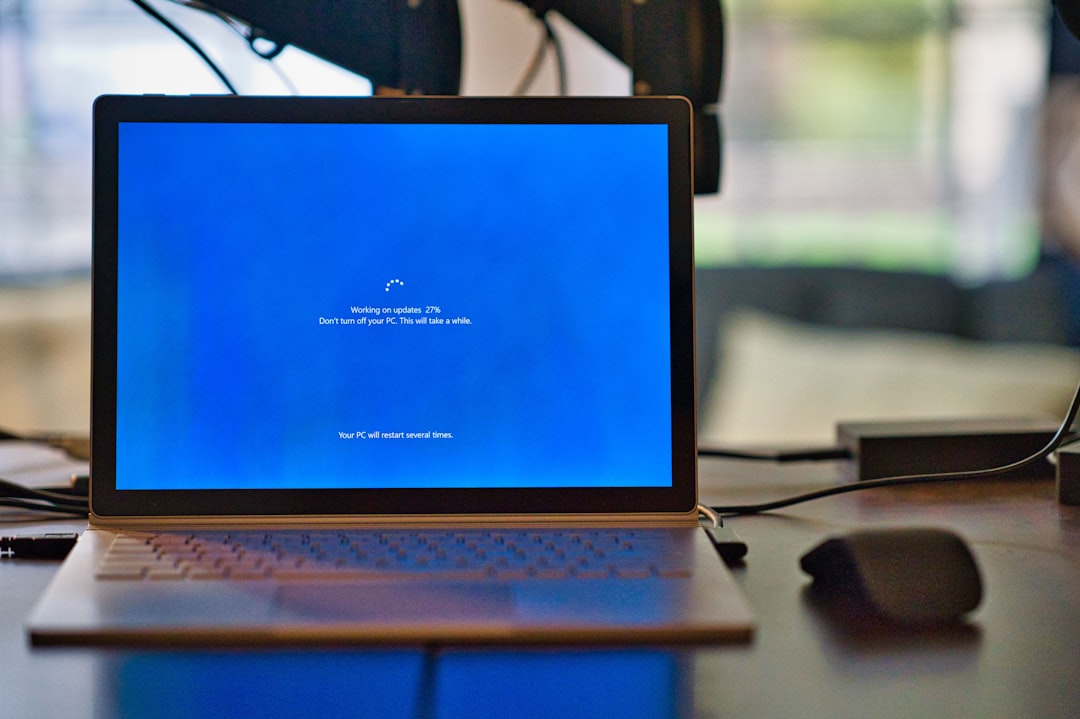
The classic error message may tell you to restart your computer because restarting is the broadest way to reset the audio environment. It closes apps, clears stuck processes, reloads drivers, reinitializes output devices, and restarts macOS audio services.
That does not mean a restart is the only fix. Often, you can solve the problem by quitting the browser, disconnecting and reconnecting headphones, changing the output device in System Settings, or closing an app that is controlling the audio interface. But a restart works because it forces every part of the audio chain to begin again from a clean state.
How to Recognize the Pattern
The best way to understand the cause is to watch when the error appears. Does it happen only in one browser? Only with Bluetooth headphones? Only after the Mac wakes from sleep? Only when an external monitor is connected? These patterns are more useful than the error message itself.
Here are a few practical clues:
- If it happens only on one website, the page, browser cache, or extension may be involved.
- If it happens across all apps, macOS audio settings or the selected output device may be the cause.
- If it happens with Bluetooth only, pairing, range, codec switching, or battery level may be responsible.
- If it happens with a USB interface, check drivers, firmware, sample rate, and hub stability.
- If it happens after sleep, the device may not be reconnecting cleanly when the Mac wakes.
Why Mac Users Should Not Panic
An audio renderer error can be annoying because it interrupts something immediate: a song, a lecture, a meeting, a tutorial, or a movie. But in most situations, it is a recoverable playback problem rather than a serious system failure. Your Mac is simply telling you that the audio stream could not be rendered through the current route.
Think of it like a traffic jam in the sound pipeline. The audio exists, the app is running, and the speakers may be fine, but the path between them has become blocked or confused. Once the route is refreshed, changed, or simplified, sound usually returns.
The Bottom Line
An audio renderer error on Mac happens when an app, browser, or macOS itself cannot successfully send audio to the selected output device. The cause may be a temporary Core Audio glitch, a browser problem, Bluetooth instability, a sample rate mismatch, an external interface issue, or a conflict with another app.
The message may sound technical, but the idea behind it is straightforward: your Mac’s audio chain has lost coordination. By understanding what the renderer does and why it can fail, you can diagnose the problem more calmly and avoid assuming the worst. Most of the time, the fix is not replacing hardware; it is refreshing the connection, simplifying the setup, or correcting the device that macOS is trying to use.
Leave a Reply