
Use “Very High” if you want Spotify’s best normal audio quality. It streams at about 320 kbit/s for Premium users, while lower settings use less data and sound less crisp [source: Spotify]. If you have seen the term Spotify Extreme Quality, it usually means the older name for Spotify’s top streaming option.
TLDR: Spotify Extreme Quality means the best regular Spotify setting, now usually called Very High. It gives you about 320 kbit/s, so a 3 minute song may use roughly 7 MB instead of about 2 MB on Normal. For example, if you stream 100 songs on Very High, expect around 700 MB of data use. Pick Very High on Wi Fi, and pick Automatic or Normal when your mobile data plan is crying.
What is Spotify Extreme Quality?
Spotify Extreme Quality is not a magic secret mode. Sorry. It is the old name many people still use for Spotify’s top quality setting.
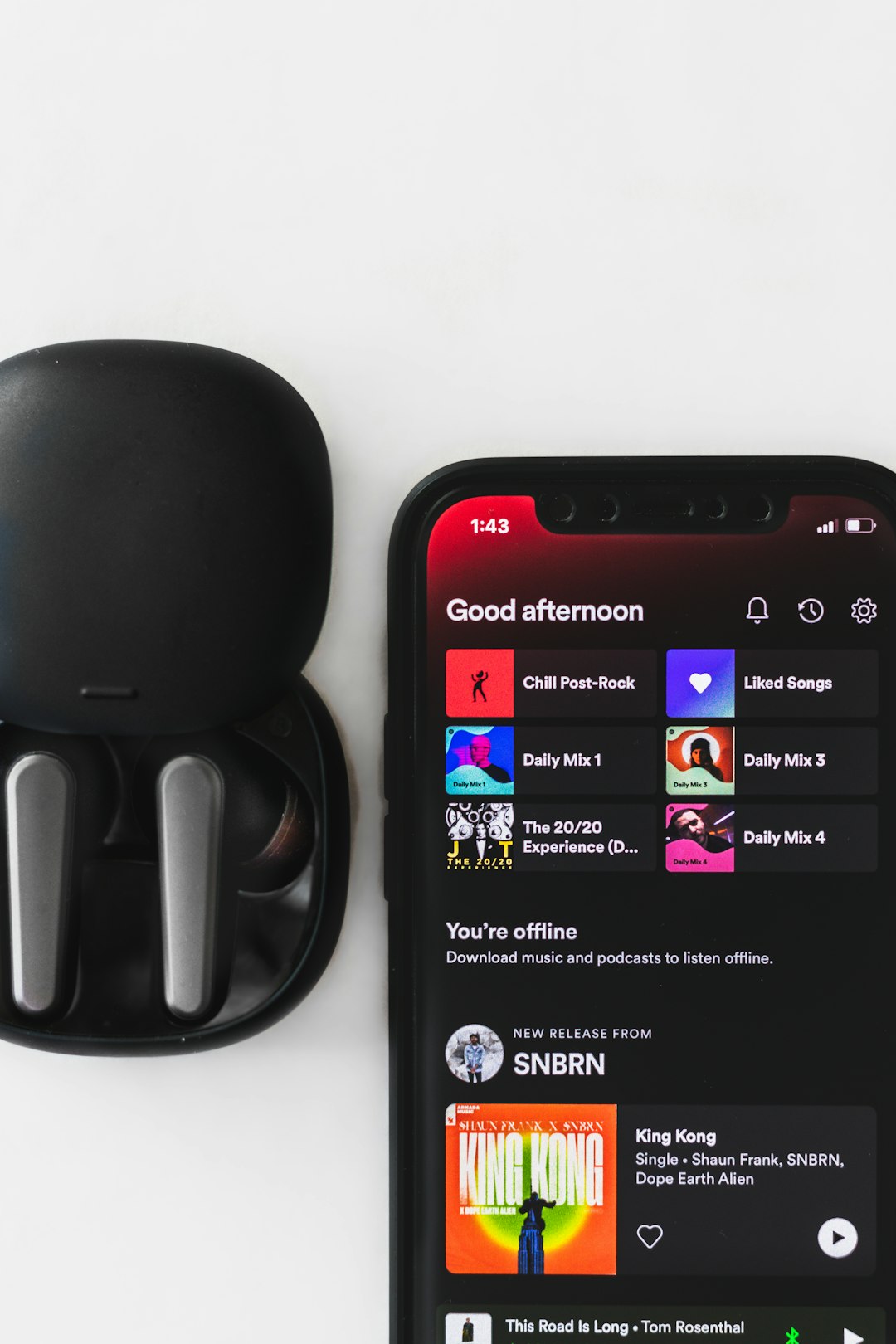
In newer Spotify apps, the name you usually see is Very High. It is available to Spotify Premium users. Free users get lower options.
So if a friend says, “Turn on Extreme,” they probably mean this:
- Open Spotify settings.
- Go to Audio Quality.
- Choose Very High.
- Enjoy fatter bass and cleaner details.
Honestly, it feels like Spotify could make this naming clearer. Old guides say Extreme. New apps say Very High. Same idea. Different label. Tiny headache.
Spotify audio quality settings, explained simply
Spotify gives you a few quality levels. Each level changes two things:
- Sound quality
- Data use
Higher quality sounds better. It also eats more data. Shocking, right?
| Setting | Approx quality | Best for |
|---|---|---|
| Low | About 24 kbit/s | Weak signal, saving data |
| Normal | About 96 kbit/s | Casual listening |
| High | About 160 kbit/s | Good daily use |
| Very High | About 320 kbit/s | Best sound on Premium |
| Automatic | Changes by connection | Travel, unstable Wi Fi |
Very High is the one people call Extreme. It is the top normal Spotify streaming quality.
Can you hear the difference?
Yes. Sometimes.
The jump from Low to High is obvious. Low can sound flat. Cymbals get splashy. Vocals lose texture. Bass feels softer.
The jump from High to Very High is smaller. You may notice it more with good headphones. You may also hear it in quiet rooms. Busy buses? Cheap earbuds? Not so much.
Here is the simple version:
- Phone speaker: Very little difference.
- Cheap earbuds: Small difference.
- Good headphones: Clearer difference.
- Car speakers: Depends on road noise.
- Home speakers: Usually worth it.
If you mostly listen while cooking pasta or walking near traffic, High is fine. If you sit with headphones and replay the same guitar solo three times, choose Very High.
How much data does Extreme Quality use?
This is where things get real.
Very High quality uses more data because it sends more audio detail. A rough rule is:
- Normal: around 40 MB per hour
- High: around 70 MB per hour
- Very High: around 150 MB per hour
These are estimates. Song length and format can shift things a bit. Still, they are useful.
Let’s say you listen for 2 hours a day on mobile data. At Very High, that can be about 300 MB per day. Over 30 days, that is about 9 GB. That is not cute if your plan only gives you 10 GB.
This is why downloading music on Wi Fi is your best friend. It saves mobile data. It also helps songs start faster.
Best Spotify quality settings for most people
Here is the no drama setup:
- Wi Fi streaming: Very High
- Mobile streaming: Automatic or High
- Downloads: Very High, if you have storage
- Bad signal: Automatic
- Data saving: Normal or Low
This setup gives you great sound where it matters. It also stops your phone from burning through data for no good reason.
The annoying part is that Spotify has separate settings for streaming and downloads. Expect to waste 20 seconds more than you wanted checking both. Still, it is worth doing once.
How to turn on Very High quality
The steps may look a little different on each device. But the path is usually close.
- Open the Spotify app.
- Tap your profile picture or settings.
- Open Settings and privacy.
- Find Audio Quality.
- Set Wi Fi streaming to Very High.
- Set Download quality to Very High, if you want.
If you do not see Very High, check your plan. It is normally a Premium feature. Also update the app. Old versions can be weird.
Should you use Automatic quality?
Automatic is handy. It changes sound quality based on your connection. Strong Wi Fi? Better quality. Weak signal? Lower quality.
This is good when you are moving around. It can prevent buffering. Nobody wants a chorus to stop right before the drop.
But Automatic can also reduce quality when your signal wobbles. If you want the best sound at home, do not leave it to chance. Use Very High.
Does Spotify have lossless audio?
Regular Spotify does not offer full lossless streaming at the time of writing. Very High is still compressed audio. It can sound very good, but it is not the same as CD quality lossless.
That does not mean it sounds bad. For many people, 320 kbit/s is more than enough. It is clean. It is smooth. It works well on phones, headphones, cars, and smart speakers.
If you are an audio nerd with expensive gear, you may want more. If you are just trying to make your gym playlist slap, Very High is plenty.
Simple rule for Spotify Extreme Quality
Use Very High when you care about sound. Use Automatic when you care about smooth playback. Use Normal when you care about data.
That is the whole game.
Spotify Extreme Quality sounds fancy. It is really just the best standard setting in the app. Turn it on for Wi Fi and downloads. Be careful with it on mobile data. Your ears may thank you. Your phone bill may not.
Leave a Reply