Use the on-screen power menu whenever you can. It is safer than holding random buttons, and it helps you avoid calling emergency services by mistake. This matters because smartphones are daily tools for most people; Pew reports that 91% of U.S. adults own a smartphone [source: Pew Research Center].
TLDR: On a modern iPhone, press and hold the Side button with either Volume button, then drag slide to power off. On many Android phones, hold the Power button, or use Power + Volume Up or Power + Volume Down if the button opens Google Assistant or Bixby. For example, if your phone freezes before a flight, a shutdown and restart can clear a stuck app in under two minutes. Expect some differences by brand, especially on Samsung, Pixel, OnePlus, and Motorola phones.
How to power off an iPhone
For most iPhones with Face ID, the normal shutdown method is simple:
- Press and hold the Side button and either Volume Up or Volume Down.
- Wait for the power screen to appear.
- Drag slide to power off from left to right.
- Wait about 30 seconds.
To turn it back on, hold the Side button until the Apple logo appears.
On older iPhones with a Home button, hold the Side button or Top button, depending on the model. Then use the same slide to power off control.

You can also shut down an iPhone without using buttons:
- Open Settings.
- Tap General.
- Scroll to the bottom.
- Tap Shut Down.
This is the cleanest option if your buttons are worn out or your case makes them hard to press. Honestly, it feels like this setting is buried deeper than it should be, but it works well once you know where it is.
How to power off an Android phone
Android is less uniform. That is the annoying part. The same “power button” may show the shutdown menu on one phone and launch an assistant on another.
Start with this common method:
- Press and hold the Power button.
- Tap Power off.
- Confirm if asked.
If that opens Google Assistant, Gemini, or Bixby, try one of these instead:
- Pixel phones: press Power + Volume Up to open the power menu.
- Samsung Galaxy phones: press Side button + Volume Down briefly, then tap Power off.
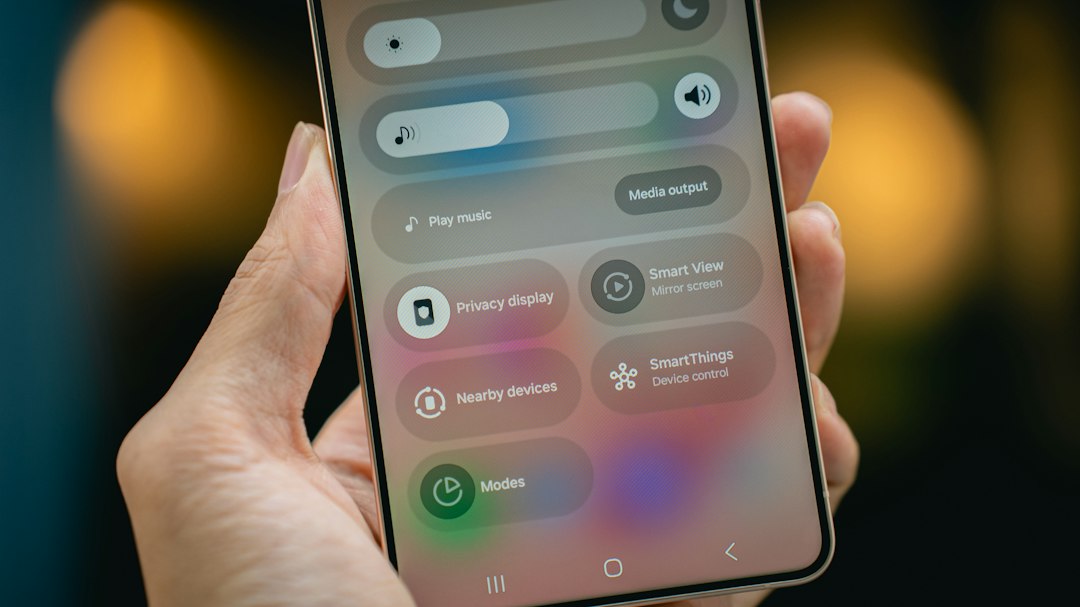
- Many Android phones: swipe down twice from the top and tap the power icon in Quick Settings.
Be careful on Samsung phones. Holding Side + Volume Down too long may trigger a forced restart instead of showing the menu. That wastes time, and it can feel like the phone ignored you.
Shutdown versus restart
Power off fully turns the phone off. It stops apps, radios, and background services. Use it when storing a phone, saving battery, reseating a SIM, or letting a hot device cool.
Restart turns the phone off and then back on. Use it when the device is slow, Wi-Fi is stuck, Bluetooth will not connect, or an app keeps crashing. In daily use, Restart is usually the better fix.
A full shutdown is not magic. It will not remove malware by itself. It will not fix a broken battery. But it can clear short-term software errors and stop runaway apps.
Settings you should know before powering off
- Emergency SOS: On iPhone, the same button combo used for shutdown can also show emergency options. Do not keep pressing buttons unless you mean to.
- Assistant shortcut: On Android, the power button may be set to open an assistant. Check Settings and search for Side key, Power button, or Press and hold power.
- Lockdown mode: Many Android phones include Lockdown, which disables biometric unlock until your PIN or password is used. This is useful when privacy matters.
- PIN after restart: iPhones and Android phones usually require a passcode, PIN, or password after reboot. Face ID and fingerprint unlock often will not work first.
- Scheduled restart: Some Android brands offer automatic restart settings. Samsung includes restart options under device care features on many models.
What if the phone is frozen?
If an iPhone is frozen, use a force restart. On recent models, quickly press Volume Up, quickly press Volume Down, then hold the Side button until the Apple logo appears. This is not the same as a normal shutdown, but it can recover a stuck phone.
On Android, hold the Power button for about 20 to 30 seconds. On some models, hold Power + Volume Down. The phone should restart. If nothing happens, charge it for at least 15 minutes and try again.

Which method should you use?
Use the regular power menu first. It is the safest choice. On iPhone, use Side + Volume or Settings > General > Shut Down. On Android, use the Power button, the brand-specific button combo, or the Quick Settings power icon.
If the phone is only acting strange, choose Restart. If it is hot, being stored, or needs a clean stop, choose Power off. If it is frozen, use the force restart steps. Simple, but easy to forget when the screen will not respond and you just want the thing to behave.
Leave a Reply