Turn off your iPhone, find the SIM tray, press the eject tool into the tiny hole, then swap the SIM card and slide the tray back in. Many iPhones have a physical SIM tray, but some newer U.S. models use eSIM only, so check your model first [source: Apple].
TLDR: Power off the iPhone, pop out the SIM tray, place the SIM card in the tray, and push it back in. The whole job usually takes under 2 minutes if you have the eject tool ready. For example, if you switch carriers at lunch, you can swap the SIM before your sandwich gets cold. If your iPhone says No SIM after 30 seconds, restart it and check the card position.
What You Need
You do not need a repair kit. You do not need tiny screwdrivers. You do not need bravery from a movie scene.
- Your iPhone
- A SIM eject tool
- A small paper clip, if the tool is missing
- Your SIM card
- A clean table, because SIM cards love to vanish
Honestly, it feels like the SIM tray was designed by someone who enjoys making people squint. It is tiny. The hole is tinier. Still, you can do this.

Step 1: Power Off the iPhone
Start by turning the iPhone off. This is the calm way to do it. It lowers the chance of weird SIM errors.
For most newer iPhones, hold the side button and either volume button. Then slide to power off. For older models, hold the side button or top button.
Yes, you may be able to swap a SIM while the phone is on. But if the phone gets grumpy, you will waste more time. Spare yourself that little drama.
Step 2: Find the SIM Tray
The SIM tray is a slim slot on the side of the iPhone. Most often, it is on the right side. On some models, it may be on the left side.
Look for a small oval shape with a tiny round hole beside it. That hole is not a microphone. Do not poke random holes. Your iPhone has enough problems already.
If you have an iPhone 14 or newer bought in the United States, you may not see a SIM tray at all. That is because those models use eSIM. No tray. No card. Just settings and a little carrier magic.
Step 3: Eject the SIM Tray
- Place the iPhone on a flat surface.
- Put the SIM eject tool into the tiny hole.
- Press straight in with gentle force.
- The tray should pop out a little.
- Pull it out with your fingers.
Do not twist the tool. Do not stab at an angle. Press straight. If it takes more than a few seconds, stop and check that you are using the right hole.
The catch is that a paper clip can work, but only if it is thin enough. Thick clips are annoying. They miss the button inside and make you feel like the phone is judging you.
Image not found in postmetaStep 4: Remove the SIM Card
Once the tray is out, the SIM card may sit loose in the tray. Pick it up gently. Hold it by the edges.
Try not to touch the gold contacts. Those gold bits are the part your phone reads. Fingerprints may not ruin anything, but why invite trouble?
If the SIM card drops, do not panic. It is small. It is dramatic. It wants attention. Pick it up and place it back in the tray.
Step 5: Reinstall the SIM Card
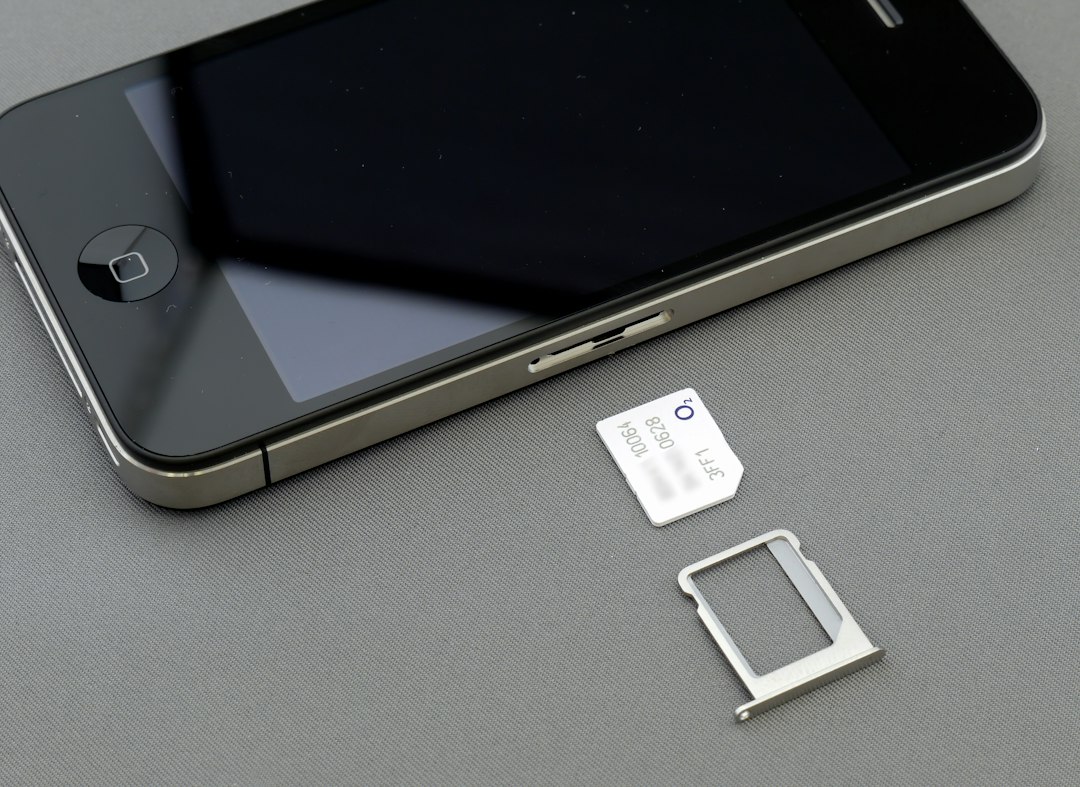
Now place the SIM card into the tray. It only fits one way. The cut corner on the card should match the cut corner in the tray.
If it rocks or sits crooked, it is wrong. Do not force it. A SIM tray should slide in smoothly. If it fights you, pull it out and check the card again.
- Gold contacts: usually face down on many iPhone trays.
- Cut corner: match it with the tray shape.
- Flat fit: the SIM should sit level.
Slide the tray back into the phone. Keep it level. Push until it sits flush with the side of the iPhone.
Step 6: Turn the iPhone Back On
Hold the side button until the Apple logo appears. Wait for the phone to start.
After a few seconds, look at the top of the screen. You should see signal bars, 4G, 5G, LTE, or your carrier name. If you do, nice. You win.
If you see No SIM or Invalid SIM, do not start yelling yet. Try these quick fixes:
- Restart the iPhone.
- Remove the tray and reseat the SIM.
- Check that the SIM is not cracked.
- Make sure the tray is fully closed.
- Try the SIM in another phone, if possible.
- Contact your carrier if the SIM is old or inactive.
Common Mistakes to Avoid
Do not use a needle. It can be too sharp and may damage the mechanism.
Do not force the tray. If it does not slide in, something is misaligned.
Do not mix up trays. SIM trays are model specific. A tray from another iPhone may not fit right.
Do not lose the SIM. It is smaller than a postage stamp and somehow faster than a cat.
When You Should Not Remove the SIM
If your iPhone uses eSIM only, there is nothing to remove. Go to Settings, then Cellular, and manage your plan there.
If the tray is stuck, do not attack it. Visit Apple, your carrier, or a repair shop. A stuck tray can turn a simple 2-minute job into a sad afternoon.
That is it. Tiny tray. Tiny card. Big relief when the signal bars come back.
Leave a Reply