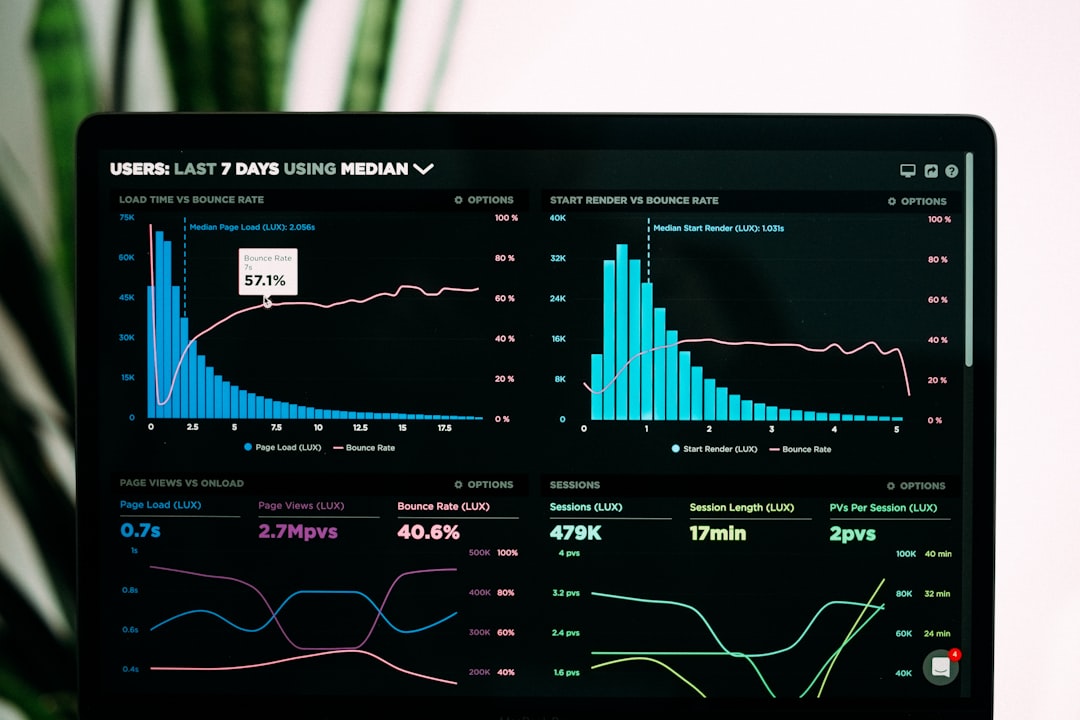
Hardware is the physical tech you can touch, while software is the coded instruction set that tells it what to do. A laptop without software is just a box of circuits. Software without hardware is just an idea waiting for a machine. The real difference shows up when something breaks, slows down, needs an upgrade, or costs money.
TLDR: Hardware includes devices like keyboards, processors, phones, routers, and printers. Software includes apps, operating systems, games, drivers, and cloud platforms. For example, if a company buys 50 laptops, that is hardware spending; if it pays $12 per employee each month for project management software, that is software spending. In a small office of 25 people, one slow software update that adds just 20 extra seconds to each login can waste more than 2 hours per month.
1. Physical vs. Digital
The most obvious difference is simple: hardware is physical, and software is digital.
- Hardware: Monitor, mouse, hard drive, motherboard, headset, printer.
- Software: Windows, macOS, Photoshop, Zoom, Chrome, mobile banking apps.
You can drop a smartphone and crack the screen. That is hardware damage. If the banking app freezes when you try to transfer money, that is software trouble. Both problems are annoying, but they are fixed in very different ways.
Real-world example: A cashier uses a barcode scanner to ring up groceries. The scanner is hardware. The point-of-sale system that calculates the total and applies discounts is software.
2. How They Are Created
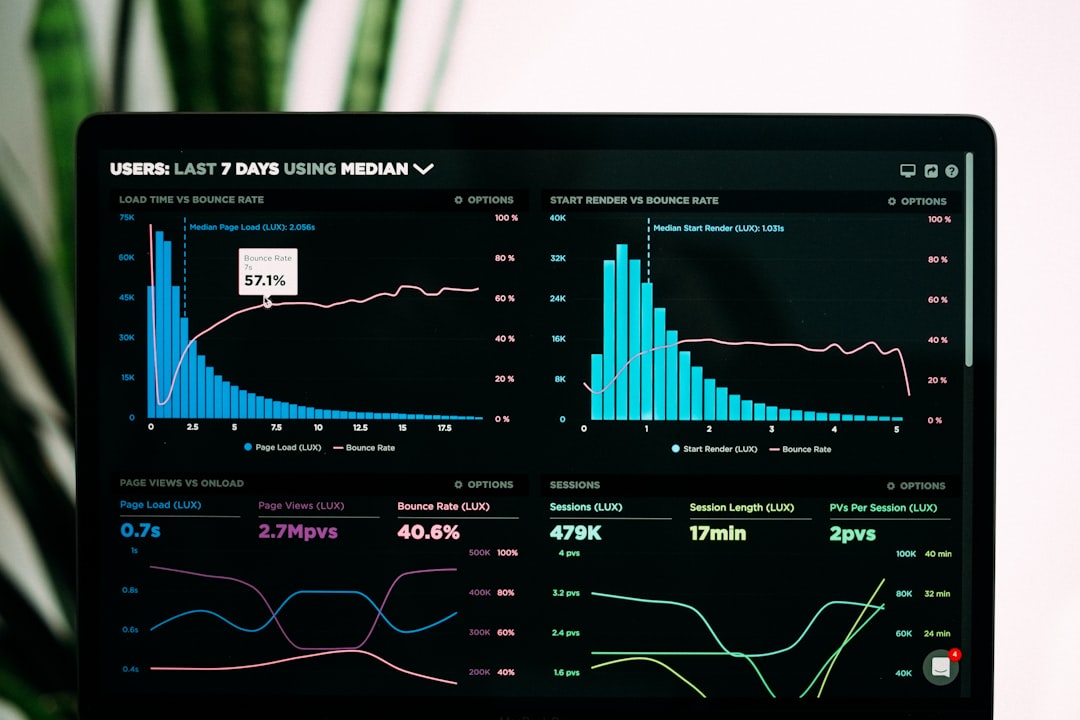
Hardware is built through engineering, manufacturing, and assembly. It needs materials like silicon, copper, plastic, glass, and metal. Software is made with programming languages, frameworks, testing tools, and design systems.
A gaming console, for example, requires chips, cooling fans, ports, controllers, and storage. The games running on it require code, graphics, sound design, physics engines, and updates.
The catch is that software can be changed after release much more easily. A developer can patch a bug in a mobile app overnight. Replacing a faulty graphics card in thousands of machines is slower, costly, and often messy.
3. Wear and Tear
Hardware wears out. Batteries lose capacity. Fans collect dust. Screens burn in. Cables fray. Hard drives fail.
Software does not wear out physically, but it can become outdated, bloated, insecure, or incompatible. Honestly, it feels like half the pain comes from updates that fix one thing and break two others.
Real-world example: A five-year-old phone may still turn on, but the battery might last only four hours. At the same time, a new version of a favorite app may stop supporting that phone’s older operating system. Here, hardware aging and software support collide.
4. Upgrade Process
Upgrading hardware often means buying parts or replacing a device. You might add RAM to a desktop, install a larger SSD, or buy a new monitor. This takes money, tools, and sometimes technical skill.
Software upgrades are usually downloaded. They may add features, patch security gaps, or improve speed. Still, they can cause headaches. Expect to waste time on surprise restarts, license prompts, and settings that mysteriously reset after an update.
- Hardware upgrade: Replacing a 256GB SSD with a 1TB SSD.
- Software upgrade: Moving from Windows 10 to Windows 11.
- Combined upgrade: Installing a new graphics card, then updating its driver.
5. Cost Structure
Hardware usually has a clear upfront cost. You pay for a laptop, router, server, or printer. Software often uses licenses, subscriptions, free trials, paid tiers, or user-based pricing.
Real-world example: A small design studio may pay $1,200 for a powerful monitor once. That is hardware. The same studio may pay $55 per user per month for creative software. With 10 users, that is $6,600 per year. The software can cost more than the hardware over time.
This is why businesses track both capital spending and operating costs. A cheap laptop with expensive required software may not be cheap at all.

6. Failure Signs
Hardware and software fail in different ways. Knowing the signs can save hours of guessing.
- Hardware failure signs: Clicking hard drive, overheating, dead pixels, no power, random shutdowns.
- Software failure signs: Error messages, crashes, login loops, frozen screens, missing files, slow startup.
Real-world example: If a laptop shuts off every time a video call starts, the cause could be an overheating processor or a weak battery. That points to hardware. If only one video call app crashes while others work fine, the issue is more likely software.
Good troubleshooting starts by separating the two. Is the device failing everywhere, or only inside one program?
7. Security Risks
Software is often the main target for cyberattacks. Hackers exploit weak passwords, bad code, unpatched apps, and fake downloads. Malware, ransomware, and phishing attacks depend heavily on software behavior.
Hardware can also be attacked, stolen, or tampered with. A lost work laptop can expose files. A rogue USB device can install malware. A compromised router can redirect traffic.
Real-world example: If an employee clicks a fake invoice link, ransomware may encrypt company files. That is a software-based attack. If someone steals an unlocked laptop from a café, the risk starts with hardware loss.
The strongest protection uses both sides: encrypted drives, secure chips, password managers, antivirus tools, system updates, and staff training.
8. Dependency on Each Other
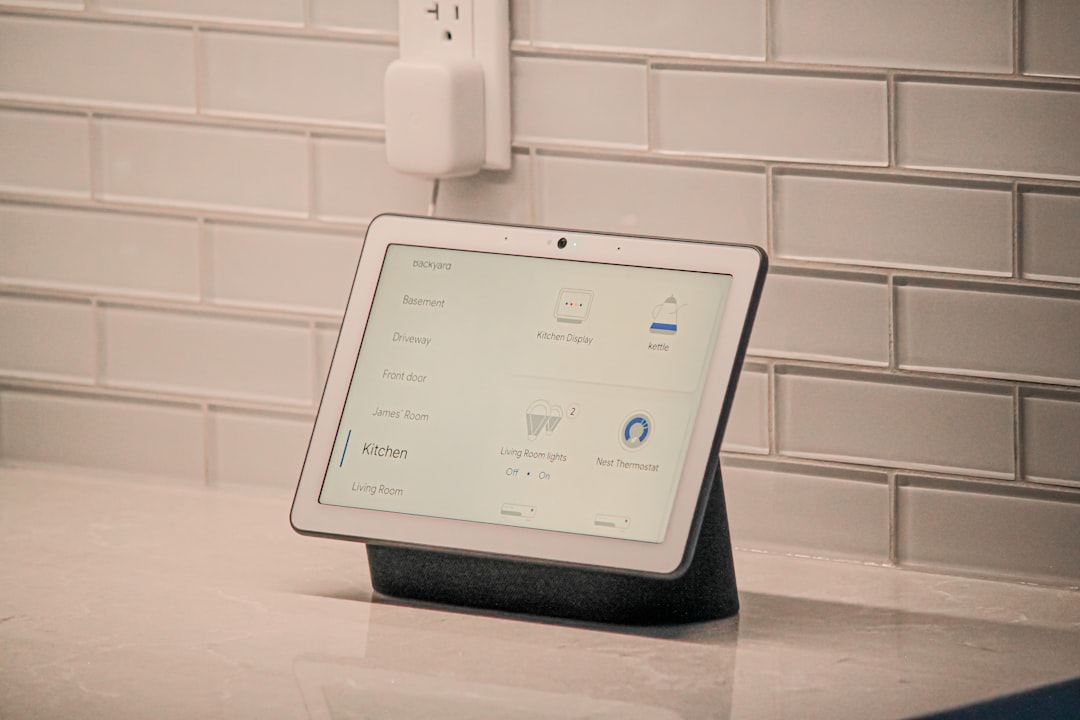
Hardware and software need each other. A printer needs drivers. A camera needs firmware. A server needs an operating system. A fitness tracker needs sensors and an app.
Firmware sits in the middle. It is software built into hardware. Your router, smartwatch, TV remote, and car infotainment system all use firmware. When it goes wrong, the device may act weird even though nothing is physically broken.
Real-world example: A wireless mouse may stop working after an operating system update. The mouse itself is fine. The problem may be the driver, Bluetooth stack, or system setting. That tiny mismatch can turn a simple task into a 30-minute irritation.
Quick Comparison Table
| Difference | Hardware | Software |
|---|---|---|
| Form | Physical device or part | Digital instructions and programs |
| Example | Keyboard, CPU, printer | Browser, app, operating system |
| Failure | Breaks, overheats, wears out | Crashes, freezes, gets corrupted |
| Upgrade | Replace parts or buy devices | Download updates or new versions |
| Cost | Often upfront | Often subscription or license based |
Why the Difference Matters
Understanding hardware versus software helps you make better tech decisions. It also helps you explain problems clearly. Saying “my computer is broken” is vague. Saying “the screen flickers even before Windows loads” points toward hardware. Saying “only the accounting app freezes after login” points toward software.
For home users, this can prevent unnecessary purchases. You may not need a new laptop if the real issue is too many startup apps. For businesses, it helps with budgeting, support tickets, security planning, and downtime reduction.
The simplest rule is this: if you can touch it, it is hardware; if it tells the device what to do, it is software. Most modern tech problems involve both, so the smart move is to check each side before spending money or blaming the wrong thing.
Leave a Reply