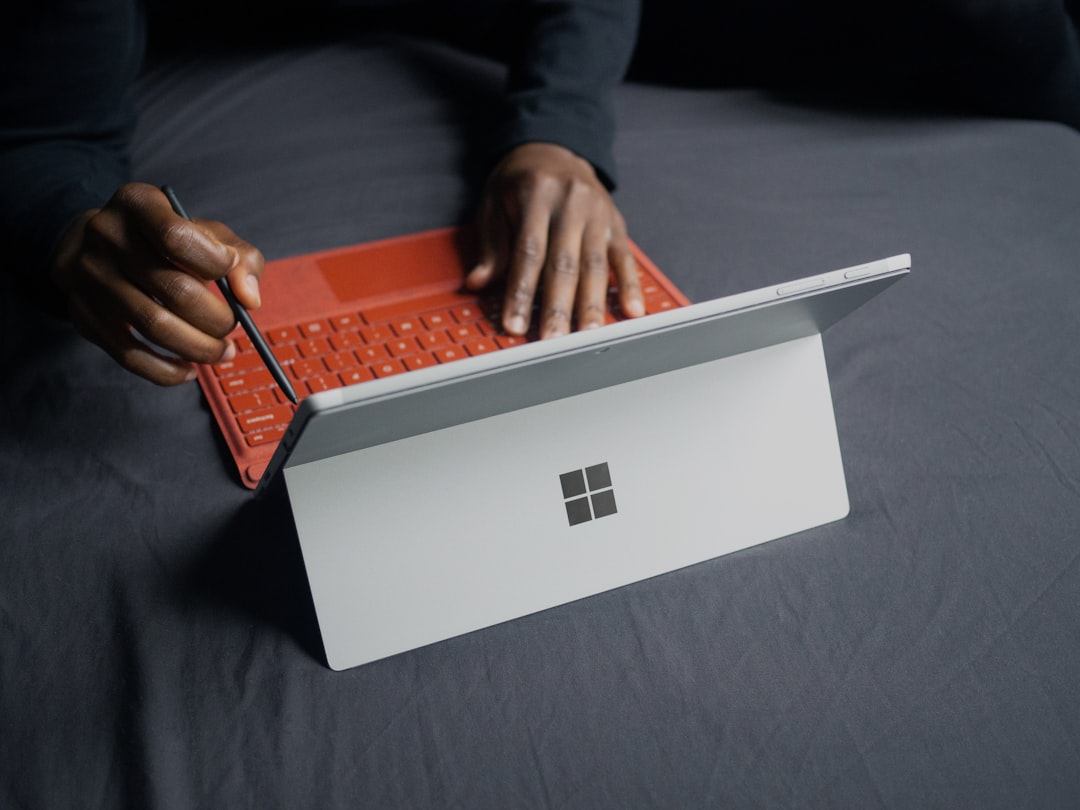
A well configured keyboard backlight can make the Surface Book 2 far more comfortable to use in dim offices, lecture halls, airplanes, and late night work sessions. Although the feature is simple, many users confuse keyboard backlight brightness with screen brightness, or expect a Windows slider that does not exist. This guide explains how the Surface Book 2 backlit keyboard works, how to control it reliably, and what to check if the light is not behaving as expected.
TLDR: The Surface Book 2 keyboard backlight is normally controlled from the keyboard itself, most commonly by using the dedicated backlight key on the function row, often F7, depending on the current Function Lock state. Windows does not provide a standard keyboard backlight brightness slider for the Surface Book 2. Screen brightness is controlled separately through Windows display settings, the quick settings panel, or brightness keys. If the backlight does not work, check Function Lock, power state, updates, keyboard connection, and Surface firmware.
Understanding the Surface Book 2 Backlit Keyboard
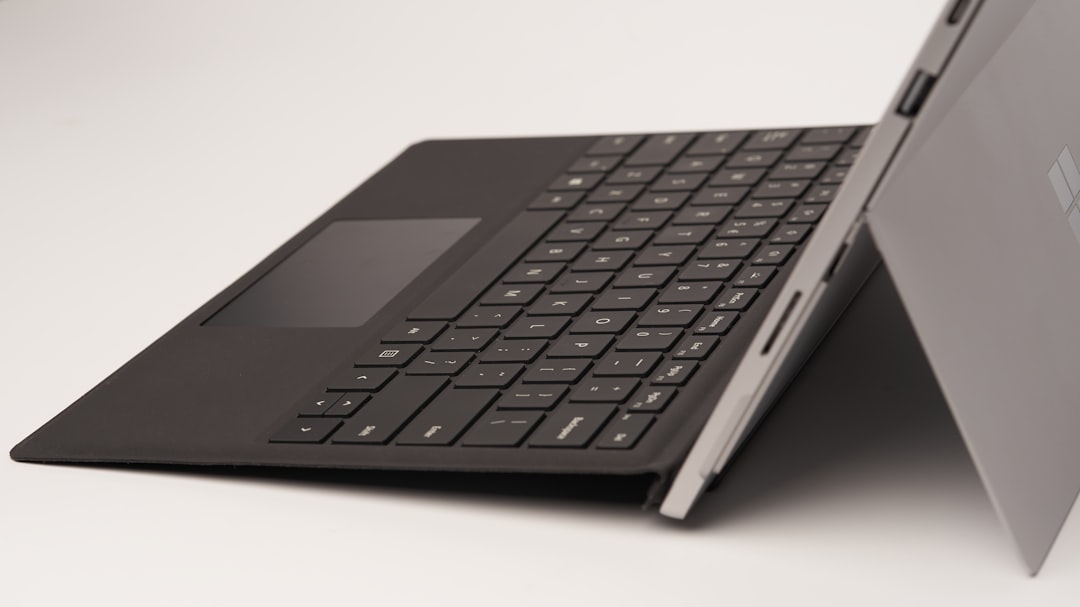
The Surface Book 2 uses a detachable keyboard base, and the backlit keyboard is built into that base. The keyboard lighting is designed to illuminate the keys, not the entire deck, so the effect is subtle and practical rather than decorative. This is important because users sometimes expect gaming laptop style lighting, color controls, or advanced effects. The Surface Book 2 provides a professional white backlight intended for visibility and battery conscious operation.
On most Surface Book 2 keyboards, the backlight is controlled with a key in the top function row. The exact behavior depends on whether Function Lock is enabled. If the top row is set to media or system controls, pressing the key with the keyboard backlight icon should adjust the light. If the top row is locked to traditional F1 to F12 behavior, you may need to hold Fn while pressing the backlight key.
How to Adjust Keyboard Backlight Brightness
To change the Surface Book 2 keyboard backlight level, use the following method:
- Locate the keyboard backlight key on the top row. It usually has an icon resembling a keyboard or lighted keys.
- Press the key once to cycle to the next brightness level.
- Press it repeatedly to move through the available settings, usually off, low, medium, and high, depending on firmware and keyboard model.
- If nothing happens, hold Fn and press the same key again.
This cycling behavior is normal. There is no separate percentage based brightness control for the Surface Book 2 keyboard backlight. You cannot usually set it to 42 percent or create custom lighting profiles through Windows settings. The device is designed around a small number of practical brightness levels.
Using the Fn Key and Function Lock Correctly
One of the most common sources of confusion is the Fn key. On Surface devices, the top row can behave in two different ways. It can either act as system control keys, such as volume, display brightness, and keyboard backlight, or it can act as standard function keys, such as F1, F2, F3, and so on.
If your backlight key is not responding, check whether Function Lock is active. On many Surface keyboards, pressing Fn toggles or modifies the behavior of the function row. Some models show a small light on the Fn key when Function Lock is enabled. If the light is on, the top row may be treating the key as a standard F key rather than as a keyboard lighting control.
A practical troubleshooting step is simple: press the backlight key once by itself, then try Fn plus the backlight key. One of these combinations should work if the keyboard base is connected correctly and the backlight hardware is functioning.
Keyboard Backlight Versus Screen Brightness
Keyboard backlight brightness and screen brightness are separate systems. This distinction matters because adjusting one will not automatically change the other. The keyboard backlight controls the illumination under the keys. Screen brightness controls the display panel.
To adjust screen brightness on a Surface Book 2, you can use several methods:
- Keyboard shortcut: Use the display brightness keys on the function row, often marked with sun icons.
- Windows quick settings: Open the Action Center or Quick Settings panel and move the brightness slider.
- Settings app: Go to Settings, then System, then Display, and adjust the brightness slider.
- Battery settings: Review power and battery options if brightness changes automatically while unplugged.
Display brightness has a direct effect on battery life and eye comfort. Keyboard backlight brightness also uses power, but the display is usually the larger battery drain. If you are trying to extend runtime, lower the screen brightness first, then reduce or disable the keyboard backlight if necessary.
Is There a Windows Setting for Keyboard Backlight Brightness?
For the Surface Book 2, Windows generally does not offer a dedicated keyboard backlight brightness slider in the Settings app. This can surprise users who have seen such controls on other laptop brands. Some manufacturers include their own utilities for keyboard lighting, but Microsoft Surface devices usually rely on firmware level keyboard shortcuts instead.
If you search Windows settings and cannot find a keyboard backlight entry, that is normally expected. It does not necessarily mean the driver is missing or the device is defective. The correct control method is the keyboard shortcut, not a software panel.
However, you should still keep Windows and Surface firmware updated. Updates can improve keyboard base recognition, power behavior, and general device stability. To check for updates, open Settings, select Windows Update, and install available updates. Restart the Surface Book 2 after firmware or driver updates, even if Windows does not immediately require it.
Why the Keyboard Backlight Turns Off Automatically
The Surface Book 2 may turn the keyboard backlight off or dim it after a period of inactivity. This is a power saving behavior rather than a fault. The light should normally return when you press a key, use the touchpad, or resume active typing. Microsoft designed the backlight to be useful when needed but not to waste battery constantly.
If the backlight goes off very quickly, consider the current power mode and battery state. Low battery, battery saver, sleep transitions, or unstable keyboard base connection can affect keyboard behavior. The Surface Book 2 is more complex than a conventional laptop because the screen and keyboard base connect through a detachable mechanism.
What to Do If the Backlight Does Not Work
If the keyboard backlight does not turn on at all, work through these checks carefully. Avoid assuming hardware failure until the basic software and connection points have been tested.
- Try both key combinations: Press the backlight key alone, then try Fn plus the backlight key.
- Check the keyboard base connection: Detach and reattach the screen to the keyboard base. Make sure the connection is clean and secure.
- Restart the device: A full restart can restore keyboard control services and firmware communication.
- Install updates: Use Windows Update to install Surface firmware, keyboard, and system updates.
- Check battery saver: Turn off battery saver temporarily and test again.
- Test in a dark room: The Surface Book 2 backlight can be hard to see in bright daylight, especially at low levels.
- Inspect for physical issues: Liquid damage, heavy impact, or base connector damage can prevent the keyboard light from working.
If none of these steps help, test whether the rest of the keyboard functions normally. If typing, touchpad movement, charging through the base, or GPU functions are also unreliable, the issue may involve the keyboard base connection rather than only the lighting.
Brightness Control for Better Battery Life
Good brightness management is one of the easiest ways to improve Surface Book 2 battery life. The display is often the largest power consumer, particularly when set near maximum brightness. The keyboard backlight uses less power, but it still matters during long sessions away from a charger.
For efficient use, consider the following habits:
- Use low keyboard backlight in dim rooms instead of the highest setting.
- Turn the keyboard backlight off when working in daylight or a well lit office.
- Keep screen brightness at the lowest comfortable level.
- Enable battery saver when you need extended runtime, but remember it may affect brightness behavior.
- Avoid maximum brightness unless necessary for outdoor or brightly lit environments.
These adjustments are especially useful because many Surface Book 2 units are now several years old. Battery capacity naturally declines over time, so thoughtful brightness control can make a noticeable difference in everyday usability.
Adaptive Brightness and Automatic Display Changes
Some Surface Book 2 configurations may offer automatic display brightness adjustment based on lighting conditions or content. If available, this setting appears in Windows display or power settings. It may be called change brightness automatically when lighting changes or a similar phrase, depending on the Windows version and installed drivers.
Adaptive display brightness does not control the keyboard backlight in the same detailed way. If your screen seems to brighten or dim unexpectedly, check display settings rather than keyboard settings. If your keyboard light changes only when you press the backlight key or after inactivity, that is normal keyboard behavior.
Recommended Everyday Settings
For most users, the best Surface Book 2 brightness setup is straightforward. Keep the keyboard backlight off in bright environments, use the lowest comfortable backlight level in dim rooms, and reserve the highest level for very dark conditions. For the display, use automatic brightness only if it behaves consistently in your workspace. If it distracts you, manual brightness control is often more predictable.
A balanced setup might look like this:
- Office lighting: Keyboard backlight off or low, screen brightness around comfortable mid level.
- Dark room: Keyboard backlight low or medium, screen brightness reduced to avoid eye strain.
- Travel: Keyboard backlight low, screen brightness conservative, battery saver enabled when needed.
- Outdoor use: Keyboard backlight off, screen brightness high only as long as required.
Final Advice
The Surface Book 2 backlit keyboard is reliable when understood on its own terms. It is controlled primarily through the keyboard, not through a Windows slider, and its brightness levels are intentionally limited. The most important things to remember are the role of the Fn key, the difference between keyboard and display brightness, and the value of keeping Surface firmware current.
If the backlight works but feels inconsistent, the cause is usually Function Lock, power saving behavior, or simple visibility in bright surroundings. If it does not work at all after updates, restarts, and reconnecting the keyboard base, then hardware inspection or professional service may be appropriate. Used properly, the Surface Book 2 keyboard backlight remains a practical feature that improves comfort without unnecessary complexity.
Leave a Reply