If you want the safest free app design tool for client work, choose Figma; if you want full ownership, open source values, and fewer worries about future paywalls, choose Penpot. Both can handle wireframes, high fidelity mobile screens, clickable prototypes, design systems, and team review. The better choice depends less on “which is more powerful” and more on how your team works, who needs access, and whether you care about self hosting.
TLDR: Figma is easier to recommend for most app designers because it is polished, widely used, and familiar to developers. Penpot is the stronger free choice for teams that want open source software, unlimited file freedom, and SVG friendly workflows. For example, a two person startup designing a 30 screen food delivery app may finish faster in Figma because templates, plugins, and developer familiarity reduce setup time by an estimated 15 to 25%. A privacy focused agency, though, may prefer Penpot because it can run on its own server and keep client files under tighter control.
Quick verdict
Use Figma if:
- You need the most common tool in product design.
- You work with clients, developers, or hiring managers who already know it.
- You want a smooth interface with mature plugins and templates.
- You need strong prototyping and design system support without much setup.
Use Penpot if:
- You want a free, open source design tool.
- You prefer to self host your files.
- You work with SVG, web standards, and developer friendly assets.
- You dislike depending on one large vendor for your app design workflow.
Figma: the practical free choice for most app teams
Figma became the default tool for many product teams for a reason. It is fast, browser based, and simple to share. A designer can send a link to a developer, founder, or client, and the file opens without drama. That sounds basic, but in real projects it saves hours.
The free plan is useful for individuals, students, early prototypes, and small tests. You can create designs, build components, use auto layout, test prototypes, and invite people to view or comment. For many app projects, that is enough to move from rough idea to clickable demo.
The strength of Figma is its ecosystem. There are thousands of community files, UI kits, icon sets, wireframe kits, plugins, and tutorials. If you need an iOS app mockup, Android Material layout, onboarding flow, dashboard kit, or SaaS mobile template, you can usually find a solid starting point in minutes.
Developers also tend to know Figma. That matters. Handoff is not just about exporting PNG files. Developers need spacing, colors, type styles, states, and assets. Figma’s inspection tools and shared file structure make this easier, even if some advanced features can push teams toward paid plans.
Honestly, it feels like Figma’s biggest weakness is not the tool itself, but the pricing anxiety around it. Free access is generous enough for learning and small work, yet teams may hit limits as collaboration grows. File organization, seats, permissions, and dev focused features can become areas where paid plans start to look less optional.
Penpot: the open source option that deserves respect
Penpot is not just “the free alternative.” It is a serious UI and UX design tool with a clear point of view. It is built around open standards, especially SVG, and it is designed for collaboration between designers and developers.
Penpot runs in the browser, like Figma. You can create frames, components, design tokens, prototypes, shared libraries, and responsive layouts. It supports team collaboration and commenting. The interface is familiar enough that Figma users can learn it without starting from zero.
The major difference is ownership. Penpot is open source. You can use its hosted version or self host it. That is a big deal for agencies, public sector teams, medical products, finance tools, and companies with strict data rules. If storing app designs on a third party platform makes your legal team nervous, Penpot gives you another route.
The catch is polish. Penpot has improved a lot, but Figma still feels more refined in tiny daily actions. Moving between files, finding plugins, using community resources, and onboarding non designers often feels faster in Figma. Expect to waste time on small adjustments that would be smoother in Figma, especially if your team is already trained on Figma shortcuts and habits.
Still, Penpot’s direction is strong. It treats design files as something teams should control, not something locked inside a commercial product. For some teams, that principle is not theoretical. It affects contracts, storage, audits, and long term access.
Free plan comparison
| Category | Figma | Penpot |
|---|---|---|
| Best for | Most designers, startups, client work | Open source teams, privacy focused teams |
| Learning curve | Very easy due to tutorials and templates | Moderate, easier if you know Figma |
| Collaboration | Excellent, very mature | Good and improving |
| Templates and plugins | Very large library | Smaller library |
| Open source | No | Yes |
| Self hosting | No | Yes |
| Developer handoff | Strong and widely understood | Strong for SVG and web based work |
Designing an app without paying: what you can really do
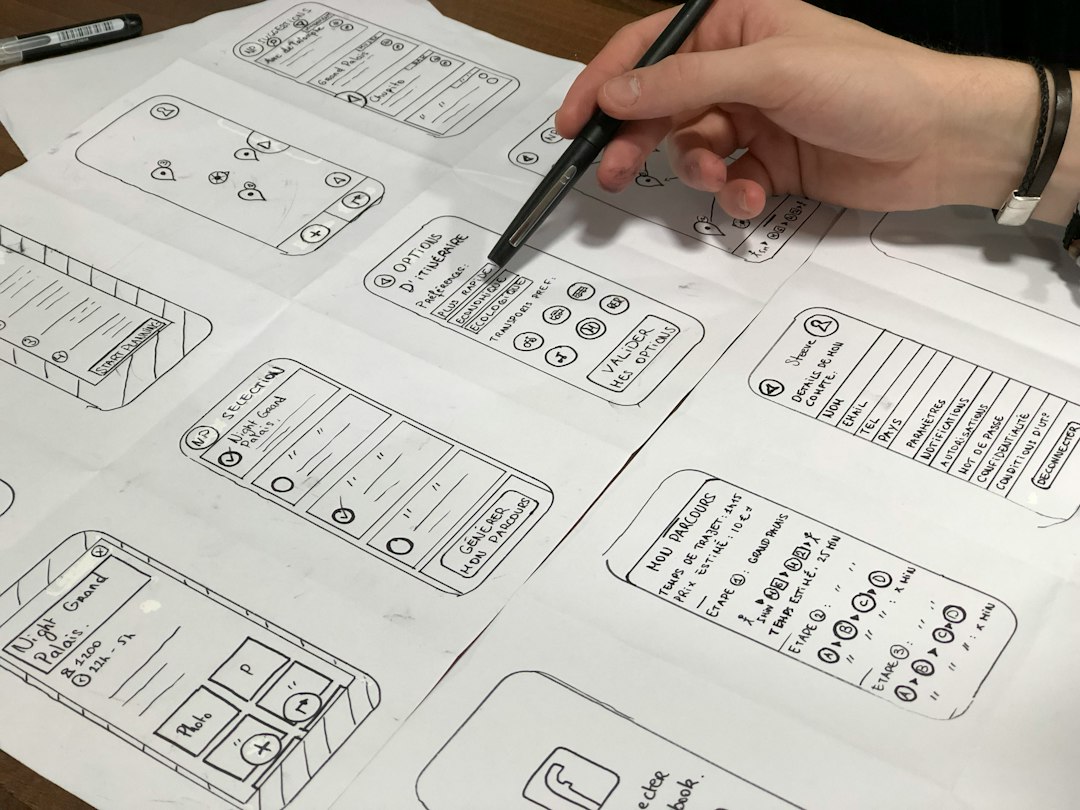
With either tool, you can create a complete app design without paying. That includes user flows, low fidelity wireframes, high fidelity screens, reusable buttons, navigation bars, modals, forms, icons, and clickable prototypes.
For a typical mobile app, the free workflow looks like this:
- Map the core screens: sign up, login, home, search, profile, settings, and key task screens.
- Create simple wireframes: focus on structure before color.
- Build a small design system: type styles, color styles, buttons, inputs, cards, and spacing rules.
- Design high fidelity screens: apply real content and states.
- Create a clickable prototype: link screens and test the flow.
- Share with users or developers: collect comments and revise.
Figma makes these steps feel smoother for most people because there are more examples to copy and adapt. Penpot gives you more control over where the work lives. That is the real trade.
Which tool is better for beginners?
Figma is better for beginners. The learning material is better, the community is larger, and most UX courses use it. If a new designer spends 20 hours learning Figma, that skill is likely to help in job interviews and freelance projects.
Penpot is still beginner friendly, but fewer clients ask for it by name. That does not make it weak. It only means the market has not caught up. If your goal is employment, Figma is the safer first tool. If your goal is independent work with open source values, Penpot is worth learning early.
Which tool is better for developers?
Developers often like Figma because they have seen it before. They know where to inspect spacing, copy CSS like values, export assets, and read comments. That reduces friction.
Penpot has a strong developer angle too. Its SVG basis makes exported assets clean and practical for web work. Teams building open source apps may also prefer a design tool that matches their software philosophy.
Final recommendation
Pick Figma if you need speed, polish, templates, and broad acceptance. It is the better free app design tool for most solo designers, students, founders, and small teams that need to move quickly.
Pick Penpot if ownership, open source access, and self hosting matter more than convenience. It is the better free app design tool for teams that think carefully about file control, privacy, and long term independence.
The good news is that you do not have to treat this as a permanent choice. Use Figma when speed and client familiarity matter. Use Penpot when control and openness matter. Both tools are capable of serious app design without an upfront bill.
Leave a Reply