Install WP Htaccess Editor, turn on its backup habit, and let it save a copy before you touch WordPress settings. That is the safest way to change permalinks, redirects, or security rules without playing “guess what broke the site” at 11:47 p.m. WordPress can write permalink rules to the .htaccess file when your server allows it [source: WordPress.org].
TLDR: Use WP Htaccess Editor to edit your .htaccess file inside WordPress and create backups before changes. For example, if you switch your links from Plain to Post name, save a backup first, then make the change. If the site breaks, restore the old file in seconds. That one small backup can turn a 45-minute cleanup into a 2-minute fix.
Why your .htaccess file deserves respect
The .htaccess file is tiny. But it has a big temper.
It can control:
- Pretty WordPress URLs.
- Redirects.
- Security rules.
- Cache rules.
- Access limits.
- HTTPS rules.
One missing character can cause a 500 server error. That means your site may show a blank page. Or an ugly error screen. Fun? Not even a little.
Honestly, it feels like such a small file should not be able to ruin your day. But it can. So give it a seatbelt.
The simple tool: WP Htaccess Editor
WP Htaccess Editor is a WordPress plugin made for editing the .htaccess file safely. It keeps you inside the WordPress admin area. No FTP panic. No digging through folders. No “wait, which file did I just open?” moment.
The plugin is useful because it can create a backup before you save changes. That is the magic part. You can test a rule, break something, sigh loudly, then restore the older version.
That is much better than copying code into a random notes app called “final htaccess maybe fixed 3.” We have all been there.
When should you make a backup?
Make a backup before any setting that may affect URLs, redirects, or server rules.
Do it before you:
- Change WordPress permalinks.
- Add redirect rules.
- Force HTTPS.
- Block bad bots.
- Add cache rules.
- Change security plugin settings.
- Edit anything that mentions Apache, rewrite rules, or access control.
If you feel even 2% unsure, make the backup. It takes less time than finding your hosting login.
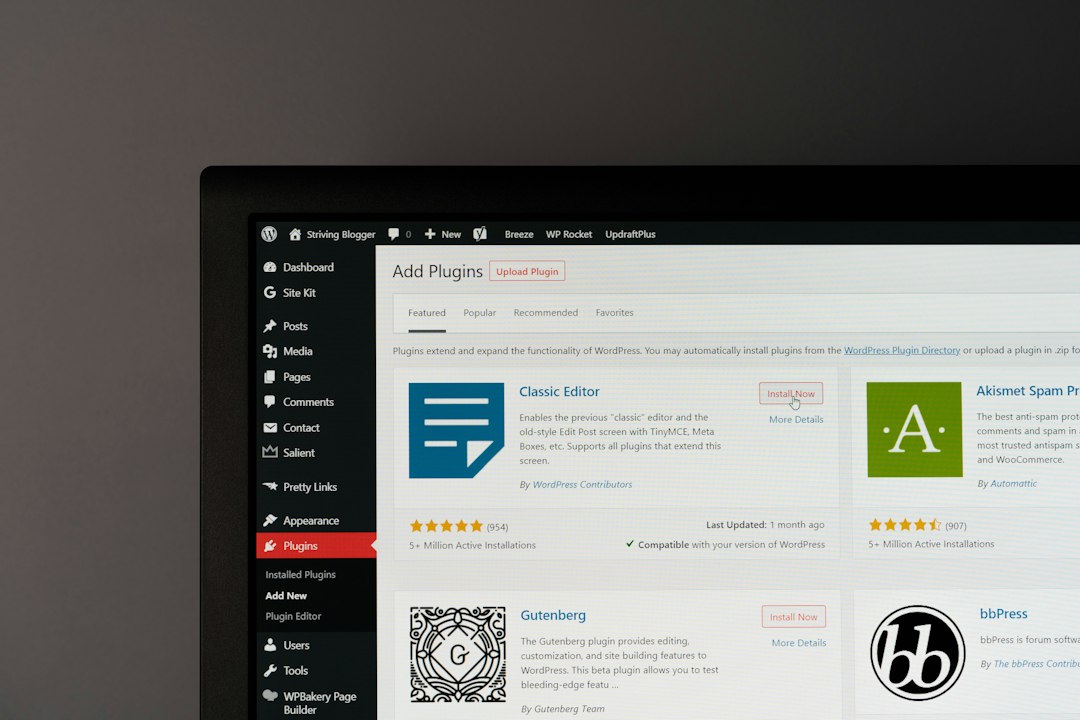
Step 1: Install WP Htaccess Editor
- Open your WordPress admin area.
- Go to Plugins.
- Click Add New.
- Search for WP Htaccess Editor.
- Install it.
- Activate it.
You can also view it on the official plugin page here: WP Htaccess Editor.
Once active, open the plugin screen. You should see your current .htaccess content. Do not start smashing keys yet. First, think like a careful site owner with coffee in hand.
Step 2: Check the current file
Look at the file before touching it. You may see WordPress rules that look like this:
# BEGIN WordPress
RewriteEngine On
RewriteBase /
# END WordPress
Do not panic. It looks nerdy. It is just server instruction text.
If your file already has custom redirects or security rules, be extra careful. Those lines may have been added by a developer, host, SEO plugin, or security plugin.

Step 3: Let the plugin create a backup
Before saving a changed file, use the backup feature in WP Htaccess Editor. The goal is simple:
- Save the current working version.
- Make your change.
- Test the site.
- Restore the backup if something breaks.
This is the whole safety plan. It is not fancy. It just works.
Name your backup in your own head too. For example: before permalink change, before HTTPS rule, or before redirect cleanup. If you manage many sites, this habit saves brain cells.
Step 4: Change your WordPress setting
Now make the WordPress change you planned.
A common case is changing permalinks:
- Go to Settings.
- Click Permalinks.
- Pick your new structure.
- Click Save Changes.
Then check your site.
Test at least these pages:
- Your homepage.
- A blog post.
- A page.
- A category page.
- A product page, if you use a store.
If all pages load, great. Your site survived. Give yourself a tiny award. Maybe a cookie.
If the site breaks, restore the backup
If you see a 500 error, strange redirects, or broken links, do not keep clicking random buttons. That makes the mess harder to clean.
Go back to WP Htaccess Editor and restore the backup you made. Then test the site again.
If WordPress admin is also broken, use your hosting file manager or FTP to replace the bad .htaccess file with the backup copy. This is rare, but it can happen. Annoying? Yes. Fixable? Also yes.
A smart mini workflow
Use this simple routine every time:
- Backup. Save the current .htaccess file.
- Change. Edit the setting or rule.
- Test. Open key pages in a private browser window.
- Restore. Roll back if anything looks wrong.
- Keep notes. Write what changed and why.
Extra safety tips
- Do not edit live during peak hours. Pick a quiet time.
- Copy rules before deleting them. Even weird old rules may matter.
- Change one thing at a time. Big batches hide the real problem.
- Clear cache after changes. Your cache may show old results.
- Keep a full site backup too. The .htaccess backup is only one layer.
The best part is this: automatic .htaccess backups make WordPress changes less scary. You can test settings without sweating over every symbol. Use WP Htaccess Editor, save before you change, and keep your site out of drama mode.