
Use a browser first, then add a lightweight viewer only when you need editing, sharing, or safer inspection. HTML files are plain text documents, so you do not need a full IDE, local server, package manager, or build chain for many routine tasks. A browser can render the page, while simple editors and online tools can help you check structure, copy snippets, and fix obvious errors. HTML remains the core markup language for structuring web pages [source: MDN].
TLDR: For quick checks, open the file in Chrome, Edge, or Firefox and use DevTools when something looks wrong. For editing, use VS Code for the Web, Notepad++, CodePen, JSFiddle, or W3Schools Tryit, depending on whether the file is private, simple, or meant to be shared. For example, a support analyst reviewing 35 saved HTML email receipts per day can save several minutes per case by previewing files directly instead of asking a developer to open them. If the file comes from outside your company, treat it as untrusted and avoid uploading sensitive content to public tools.
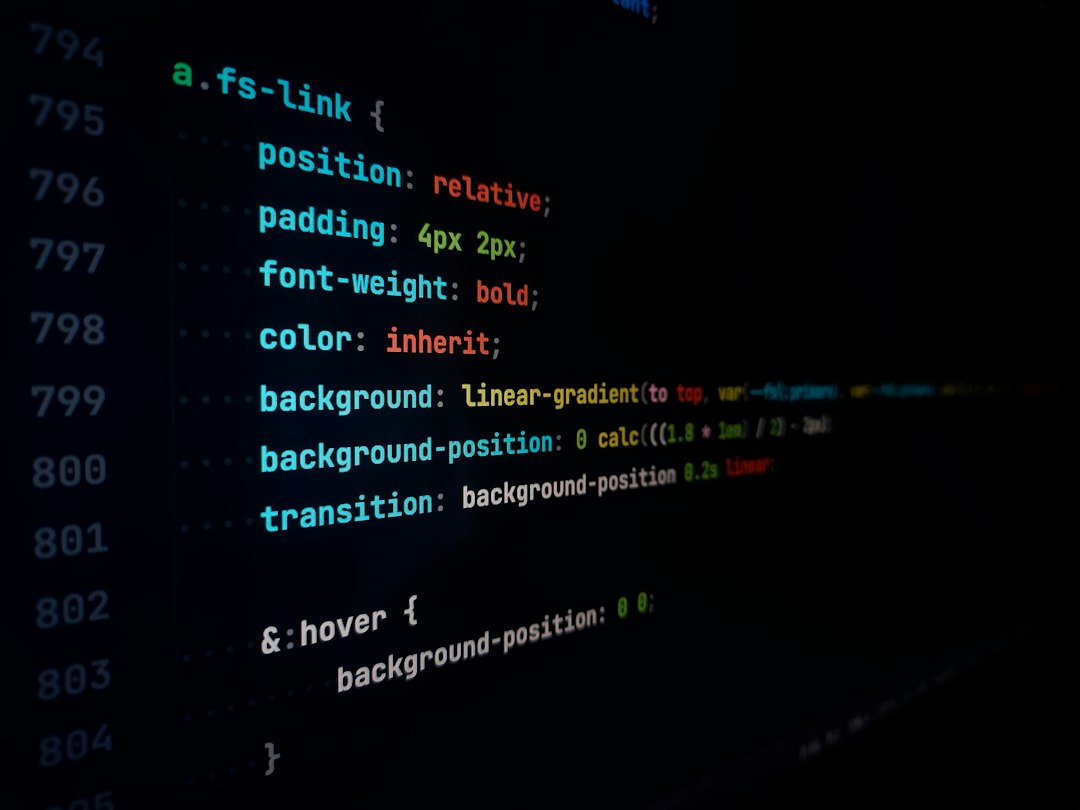
1. Your Web Browser: Best for Fast Previewing
The simplest HTML file viewer is already installed. Chrome, Edge, Firefox, and Safari can open local .html files with a double click or by dragging the file into a tab.
- Best for: quick visual checks, saved reports, email templates, static pages.
- Strength: zero setup and accurate rendering.
- Weak spot: it may not load blocked local assets or scripts as expected.
Right click the page and choose Inspect to view the DOM, CSS rules, console errors, and network requests. This is often enough to find a broken image path, missing closing tag, or script error. The catch is that local file paths can behave differently from a hosted page, so do not assume every issue is final proof of a production bug.
2. Browser DevTools: Best for Inspection
DevTools is not just for developers. It is useful for anyone who needs to answer simple questions: Why is this text hidden? Which image failed? What CSS rule changed the layout?
You can edit text, disable CSS rules, test mobile widths, and inspect accessibility labels. These edits are temporary, which is both good and bad. You can test safely, but nothing is saved unless you copy the change back into the file.
3. VS Code for the Web: Best Browser Based Editing
VS Code for the Web is a strong choice when you want an editor without installing a full desktop setup. It runs in the browser and can open folders from supported cloud services or local files, depending on browser permissions.
- Best for: clean editing, formatting, search, and comparing files.
- Strength: familiar editor tools without a heavy install.
- Weak spot: local file access can feel clunky in some browsers.
Honestly, it feels like one extra permission prompt always appears when you are in a hurry. Still, for light HTML work, it is far better than pasting code into random text boxes.
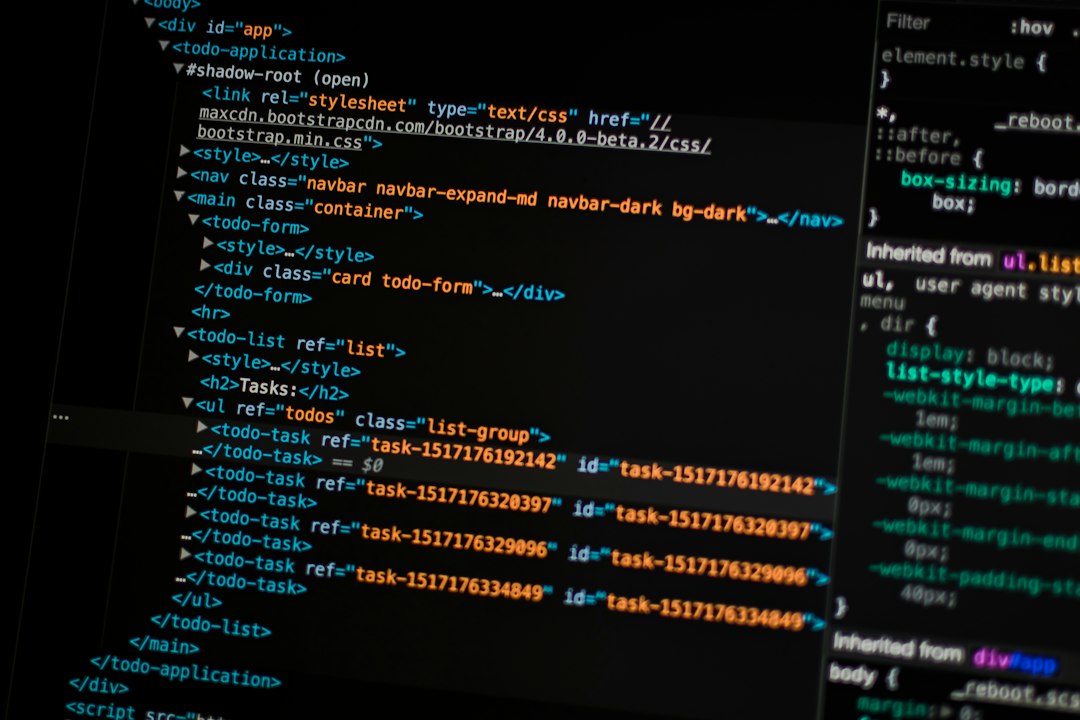
4. CodePen: Best for Shareable Snippets
CodePen is useful when you have a small HTML, CSS, and JavaScript example that someone else needs to see. Paste the HTML into the HTML panel, add CSS or JavaScript if needed, and share the result.
It works well for UI bugs, button styles, layout tests, and training examples. It is not ideal for private customer records, internal templates, or anything with tokens, names, emails, or business data. Public sharing is convenient, but that convenience can create risk.
5. JSFiddle: Best for Isolated Testing
JSFiddle is similar to CodePen, but it has a more stripped down feel. That can be a benefit. It is good when you want to test one behavior without distractions.
- Best for: small bug cases and quick proof of concept tests.
- Strength: simple panels for HTML, CSS, JavaScript, and output.
- Weak spot: not comfortable for larger documents.
Expect to waste time if you paste a full exported HTML page with long inline styles and scripts. These tools shine with small examples, not giant files.
6. Notepad++: Best Lightweight Desktop Option
Notepad++ is a practical Windows option for people who want local editing without a full development setup. It opens large text files quickly, highlights HTML syntax, and supports plugins for extra features.
It is a good fit for compliance teams, QA staff, support desks, and content editors who often need to inspect saved HTML but do not need a complete web project. You can search across files, compare sections, and clean up plain text. The main downside is that preview support may require a plugin or a separate browser refresh.
How to Choose the Right Tool
- Need to see what the page looks like? Use a browser.
- Need to find a broken element? Use DevTools.
- Need to edit safely on your machine? Use Notepad++ or VS Code for the Web.
- Need to share a small example? Use CodePen or JSFiddle.
- Need to teach or test basic markup? Use W3Schools Tryit or another simple online editor.
Security Matters More Than Convenience
An HTML file can contain scripts, tracking pixels, external links, and hidden forms. Never assume it is harmless because it opens in a browser. If the file came from an email, customer upload, or unknown sender, open it offline or inside a controlled environment if possible.
Do not paste private files into public editors. Remove names, account numbers, API keys, emails, and internal URLs first. For business use, local tools are usually safer than web based tools unless your company has approved them.
For most people, the best stack is simple: browser for preview, DevTools for inspection, and one lightweight editor for careful changes. That covers most HTML viewing tasks without the weight and delay of a full development setup.