Choose EZGIF if you want control, speed, and no fuss; choose Clideo if you want a cleaner interface and are fine with a more guided workflow. MOV files often come from iPhones, Macs, cameras, and editing apps, but GIFs are simpler, silent, and limited to 256 colors per frame [source: MDN]. That means a good MOV to GIF converter should help you trim hard, resize fast, and keep the file from turning into a chunky mess.
TLDR: EZGIF is better for users who want detailed settings like frame rate, size, crop, optimize, and split options. Clideo is better for quick, polished conversions with fewer technical choices, especially if you like uploading from cloud storage. For example, a social media manager turning a 12 second iPhone MOV into a 4 second reaction GIF may finish faster in Clideo, but may get a smaller file and more control in EZGIF. In a typical workflow, cutting a clip from 12 seconds to 4 seconds can reduce the final GIF size by 60% or more, depending on resolution and frames per second.
Why MOV to GIF conversion is trickier than it looks
A MOV file can hold high quality video, audio, color data, and modern compression. A GIF cannot. It has no audio and usually looks worse than the original video. It also bloats fast.
That is why the converter matters. The best tool is not just the one that changes the file extension. It is the one that helps you make smart cuts before the GIF becomes too heavy to upload, email, or post.
For most animated clips, aim for:
- Length: 2 to 6 seconds
- Width: 480 to 720 pixels
- Frame rate: 10 to 15 fps
- Content: clear motion, simple background, strong subject
Honestly, it feels like half of GIF creation is just fighting file size. A beautiful 1080p MOV can become an ugly, oversized GIF if you keep the full resolution and 30 fps.
EZGIF: practical, plain, and surprisingly powerful
EZGIF looks old-school, but that is part of the appeal. It is built for people who want direct controls. The MOV to GIF process is simple: upload the video, choose start and end time, set size, pick frame rate, and convert. After that, you can optimize, crop, resize, reverse, split frames, add text, or reduce colors.
The tool supports video uploads through its video to GIF page, with current limits listed on the upload screen [source: EZGIF]. It is not glamorous. It is not trying to be a full editing suite. It just gives you useful buttons and gets out of the way.
What EZGIF does well:
- Granular settings: You can adjust size, frame rate, duration, and optimization level.
- Great compression tools: The GIF optimizer can reduce file size after conversion.
- No decorative clutter: The interface is plain, but fast to understand.
- Useful extras: Crop, rotate, cut, reverse, speed change, text, and frame tools are easy to find.
Where EZGIF can annoy you:
- The design feels dated.
- Previewing edits can take a few extra clicks.
- Large files may be rejected, depending on current upload limits.
- Mobile use is not as smooth as desktop use.
The catch is that EZGIF rewards patience. If you are willing to test 12 fps versus 15 fps, or 600 px versus 480 px, you can often get a cleaner result with a smaller file. That matters when a platform has strict upload limits.
Clideo: cleaner, friendlier, and better for casual users
Clideo has a more modern feel. The interface is softer, clearer, and easier for people who do not want to think about every technical setting. You upload your MOV, trim it, convert it, and download the result. It also supports imports from cloud storage on many of its tools, which is handy if your video is not stored locally [source: Clideo].
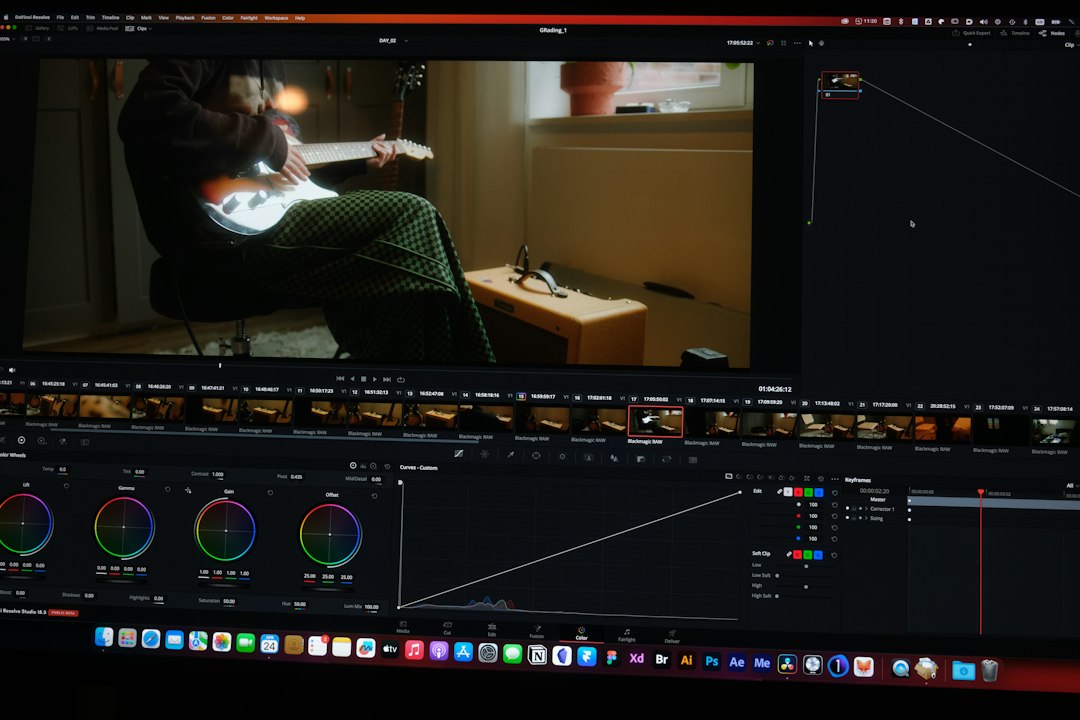
Clideo feels more like a consumer web app. It is good for quick marketing clips, support GIFs, meme snippets, and short tutorials. You do not need to know much about frame rate or file compression to get something usable.
What Clideo does well:
- Beginner friendly: The workflow is simple and clear.
- Good trimming experience: Cutting the right moment feels easier than in many bare-bones tools.
- Cloud friendly: Uploading from online storage can save time.
- Polished layout: It feels less intimidating than EZGIF.
Where Clideo can frustrate you:
- Free exports may include branding, depending on the tool and plan.
- Fine control is more limited than EZGIF.
- Processing can feel slower when uploads are large.
- You may hit plan limits if you convert often.
If you only make a GIF once in a while, Clideo is pleasant. If you make ten GIFs in one afternoon, the lack of deeper controls may start to bother you.
EZGIF vs. Clideo: quick comparison
| Feature | EZGIF | Clideo |
|---|---|---|
| Best for | Control, optimization, repeat work | Simple edits, fast casual use |
| Interface | Plain and technical | Modern and guided |
| Compression control | Strong | Basic to moderate |
| Ease of use | Moderate | Very easy |
| Best user | Editors, marketers, technical users | Beginners, students, quick creators |
Which one gives better GIF quality?
Quality depends less on the tool and more on your settings. Still, EZGIF gives you more ways to fix problems after conversion. You can reduce colors, drop frames, resize, crop, and apply lossy compression. That makes it easier to balance quality and size.
Clideo can produce good-looking GIFs too, especially from short and clean MOV files. It is just less flexible when the output is too large or slightly rough. If your first result is not right, EZGIF usually gives you more ways to repair it without starting over.
A practical example: say you start with a 9 second MOV at 1080p. In EZGIF, you can cut it to 5 seconds, resize to 600 px wide, set 12 fps, convert, then run optimization. In Clideo, you can trim and convert quickly, but you may have fewer detailed controls for squeezing the final file down.
Best use cases for each converter
Use EZGIF when:
- You need the smallest possible GIF.
- You want to crop out unwanted edges.
- You need frame-level tools.
- You are making GIFs for documentation, email, chats, or blogs.
- You do not mind a plain interface.
Use Clideo when:
- You want a smoother, simpler workflow.
- You are making a quick GIF from a short MOV.
- You prefer a visual editor.
- Your file is stored in the cloud.
- You do not want to tweak every setting.

Tips for better MOV to GIF results
Start with the shortest clip possible. Cut dead space before and after the action. If the GIF needs to show a click, gesture, face reaction, or product feature, keep only that moment.
Next, reduce dimensions. A 480 px GIF often looks fine in chat windows, help docs, and blog posts. Do not export at 1080p unless there is a real reason.
Then lower the frame rate. Most GIFs do not need 30 fps. Try 12 fps first. If motion looks too choppy, test 15 fps. Expect to waste time on one or two test exports; that is normal, and it beats uploading a 40 MB monster nobody wants to load.
Final verdict
EZGIF is the better MOV to GIF converter for control and file size management. It is ideal when you care about compression, cropping, frame rate, and repeat edits. It may look basic, but it gives you the tools that matter.
Clideo is the better choice for speed and comfort. It is easier for beginners and better suited to one-off GIFs. If your clip is short and simple, it can get the job done with less friction.
For most people, the smartest setup is to use both. Try Clideo when you need a quick animated clip. Use EZGIF when the file is too big, the crop is wrong, or you need tighter control over the final result.
Leave a Reply