Set up Porsche Apple Wallet Car Key from the My Porsche app, then use your iPhone or Apple Watch like a real key for locking, unlocking, and starting the car. Apple says car keys in Wallet can lock, unlock, and start a compatible vehicle, and some keys may keep working for a short time after the iPhone battery is very low [source: Apple]. The big warning: not every Porsche model, trim, region, or model year supports it.
TLDR: If your Porsche supports Digital Key, you add it through the My Porsche app and save it to Apple Wallet. After that, you can unlock the car with your iPhone or Apple Watch, often in about 1 to 2 seconds once everything is set up. For example, if two drivers share one Cayenne, the owner can send a digital key to the second driver instead of handing over a physical key. Expect to spend 5 to 10 minutes on setup if your Porsche ID, phone, and car software are ready.
What You Need Before You Start
The Porsche Apple Wallet Car Key sounds simple. Most of the time, it is. The catch is that support depends on your car and account setup, not just your phone.
- A compatible Porsche with Porsche Digital Key support.
- An iPhone with the latest iOS. An Apple Watch can also be added if supported.
- The My Porsche app, signed in with the Porsche ID linked to the car.
- Porsche Connect services, if required for your model or market.
- The physical key nearby during setup. Yes, the old key still gets one last job.
- Bluetooth, Wi Fi, and mobile data turned on during pairing.
If the Digital Key option does not appear in the My Porsche app, do not waste an hour tapping around menus. It usually means your vehicle is not eligible, the car is not linked to your Porsche ID, or the required service is not active.
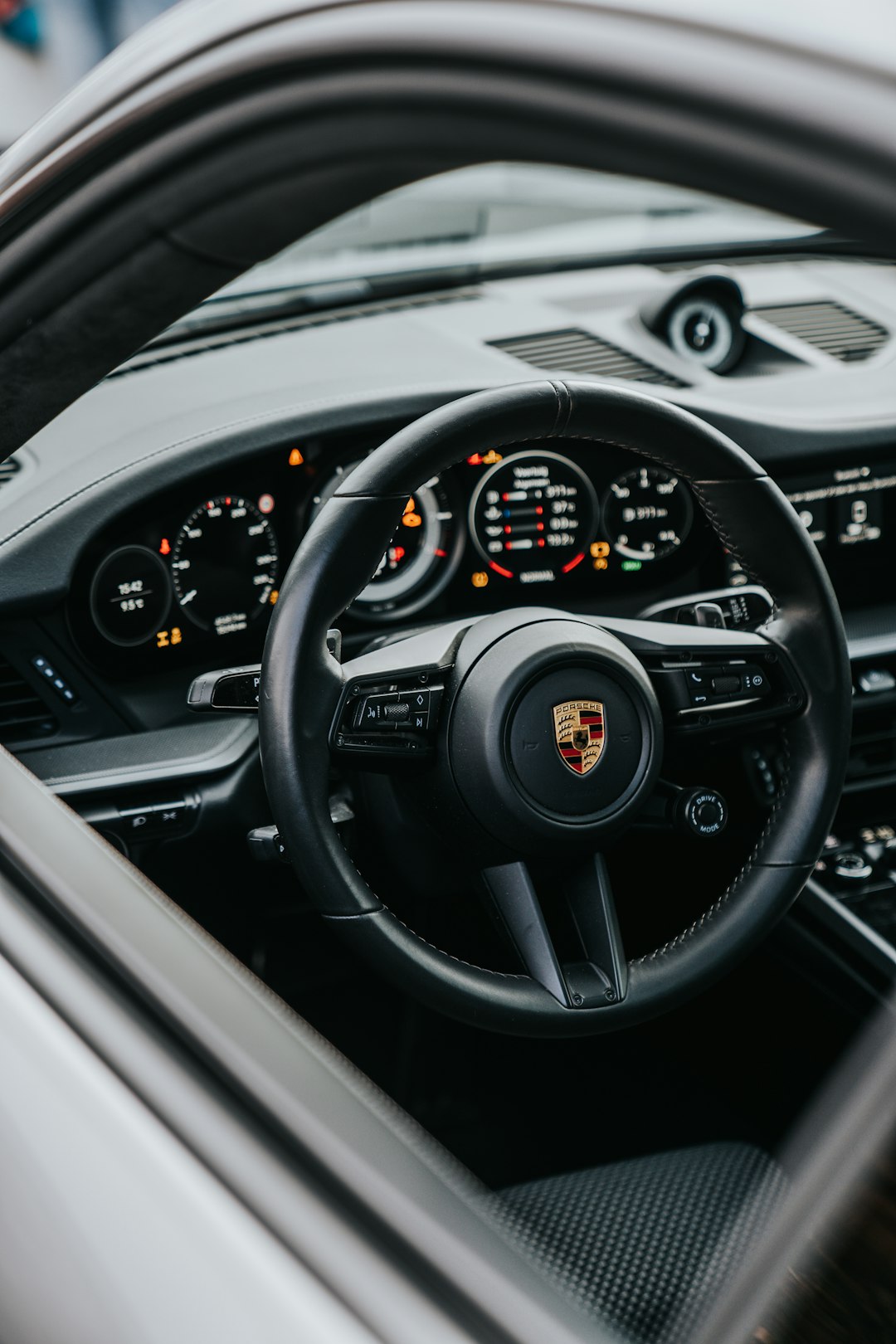
How to Set Up Porsche Car Key in Apple Wallet
- Update everything first. Update iOS, the My Porsche app, and your car software if an update is pending.
- Open the My Porsche app. Choose your vehicle from the garage screen.
- Find Digital Key. Look for a menu named Digital Key, Vehicle Access, or similar. Porsche may label it slightly differently by market.
- Start activation. Tap the setup option and follow the on screen checks.
- Keep the physical key in the car. Some setups ask you to sit in the driver seat with the key present.
- Add the key to Apple Wallet. When prompted, tap Add to Apple Wallet.
- Confirm with Face ID, Touch ID, or passcode. Wallet will finish saving the key.
- Add it to Apple Watch. If offered, add the same key to your watch. It is a great backup.
Honestly, it feels like the slowest part is not the pairing. It is signing back into accounts, accepting prompts, and waiting for the car and phone to agree that they are friends.
How to Use It Day to Day
Once the key is in Apple Wallet, use it in one of two ways. Your exact experience depends on the Porsche model and key technology.
- Tap to unlock: Hold your iPhone or Apple Watch near the driver door handle or sensor area.
- Tap to lock: Hold it near the same area again when leaving.
- Start the car: Place the iPhone in the phone tray or reader area, press the brake, then start the vehicle.
- Passive access, if supported: Some systems may unlock as you approach with the device in your pocket or bag.
Express Mode is the feature most people will love. With it turned on, you do not need Face ID every time you open the door. That feels natural. It also means you should treat the phone like a real key. If someone has your unlocked device, that is a problem.
Image not found in postmeta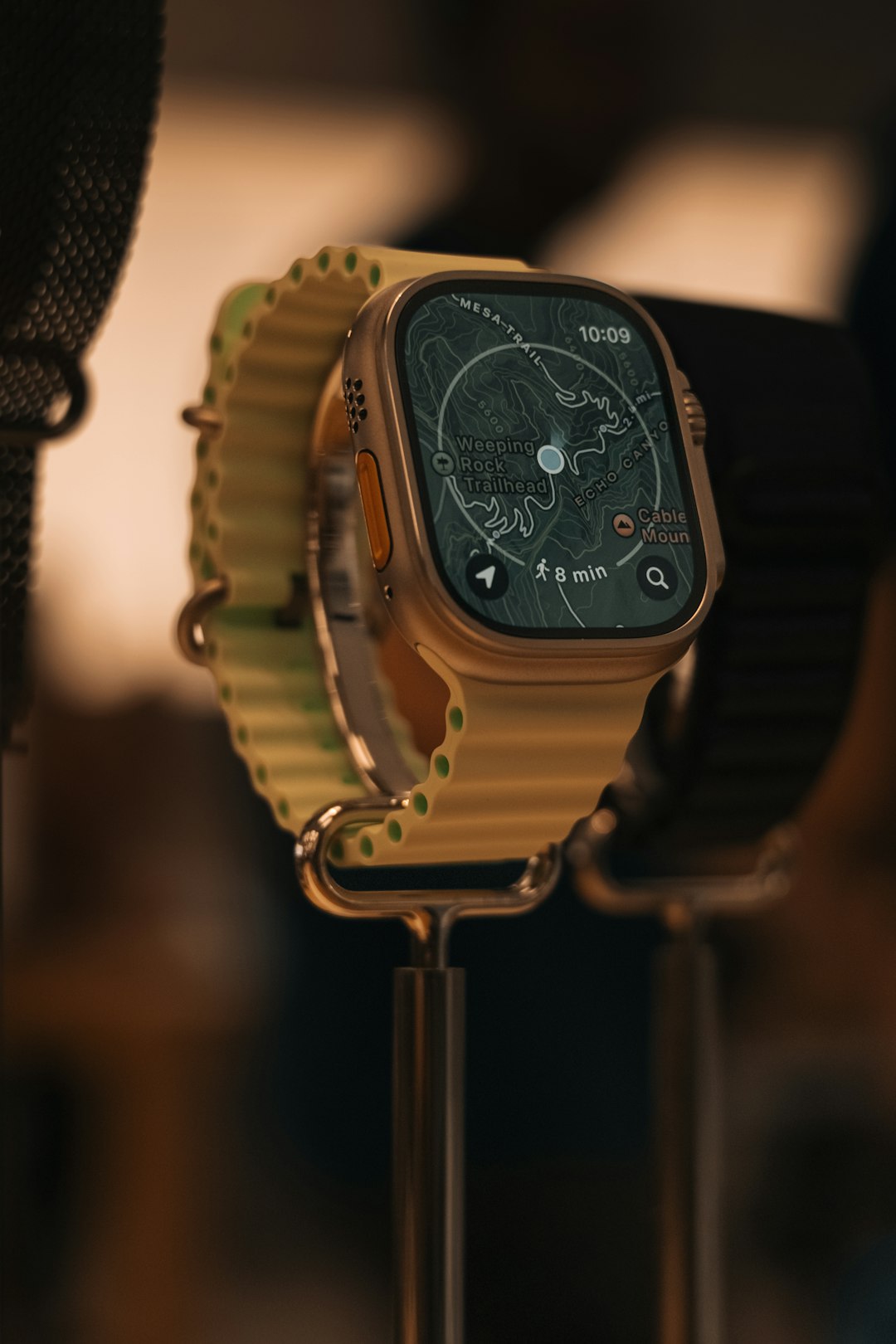
Sharing a Porsche Digital Key
Sharing is one of the best reasons to use Apple Wallet Car Key. Open Wallet, tap the Porsche key, and look for the sharing option. You can send access to another person, usually through Apple’s sharing flow.
Depending on Porsche support, you may be able to choose limits. For example, you might allow full driving access for a partner, but shorter access for a guest. If you do not see these controls, your car may not support them yet.
Need to remove someone? Go back to the key in Wallet or the My Porsche app and revoke access. Do this before selling the car, changing phones, or ending a shared lease. It drives me crazy that people forget this step, then wonder why an old phone still appears in the access list.
Common Problems and Quick Fixes
- No Digital Key menu: Check model eligibility, Porsche Connect status, and owner permissions.
- Pairing fails: Restart the phone, open the car, sit inside, and keep the physical key nearby.
- Wallet key will not work: Turn Bluetooth back on and check if Express Mode was disabled.
- Apple Watch not working: Add the key from the Watch app or Wallet after the iPhone key is active.
- New iPhone: Remove the key from the old device, then set it up again on the new one.
Is It Safe?
For most drivers, yes. Apple Wallet keys use device security, and you can remove them through Wallet, the My Porsche app, or your Apple account tools if a phone is lost. Still, keep a physical key at home. Software is useful, but a dead phone, weak signal during setup, or account issue can ruin a morning fast.
The Porsche Apple Wallet Car Key is best as a daily convenience, not your only plan. Set it up, test it twice, add your Apple Watch if you have one, and keep the physical key somewhere safe. That mix gives you the comfort of modern access without giving up a reliable backup.
Leave a Reply