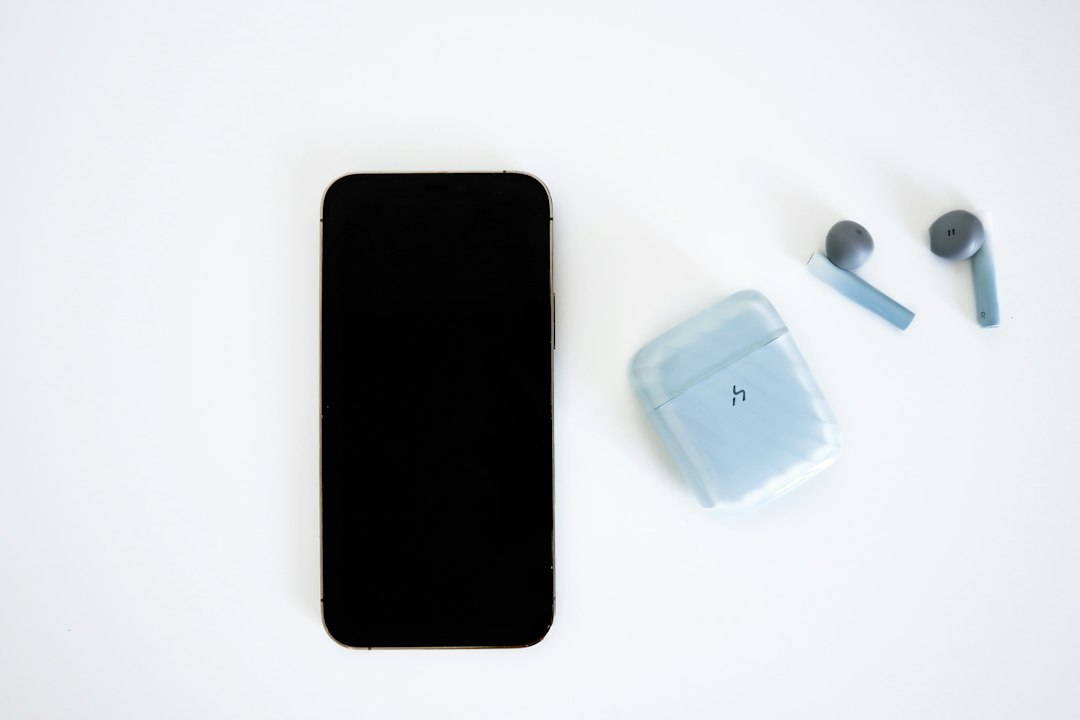
Tap to Pay on iPhone turns a compatible iPhone into a contactless card reader, so a business can accept payments without a separate terminal. Apple says the feature works on iPhone XS or later with a supported payment app and the latest iOS version [source: Apple].
TLDR: Tap to Pay on iPhone lets sellers accept contactless cards, Apple Pay, and other digital wallets by having the customer tap their card or device on the seller’s iPhone. For example, a market vendor can enter a $12.50 sale in a payment app, ask the customer to tap, and get approval in a few seconds. It removes the need for a small card reader, which is handy for pop-up shops, home services, salons, food trucks, and solo workers. The main catch is that it only works in supported countries, with supported payment apps, and on compatible iPhones.
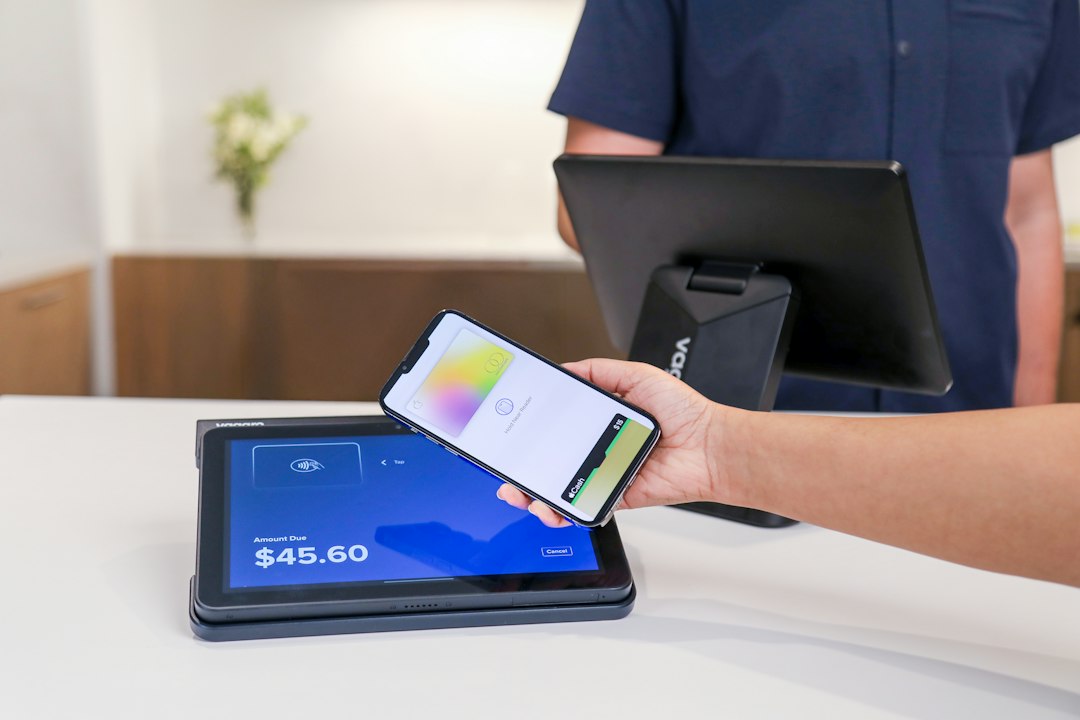
At its simplest, Tap to Pay on iPhone is card acceptance built into the phone. The seller opens a payment app, enters the amount, and presents the iPhone to the customer. The customer then taps a contactless credit card, debit card, Apple Watch, or another digital wallet near the top of the iPhone.
How the payment actually works
The process feels simple, but several things happen in the background.
- The seller starts the sale: A supported app creates the payment request.
- The iPhone activates NFC: NFC is the short-range wireless tech used for tap payments.
- The customer taps: A card or mobile wallet sends encrypted payment data.
- The payment app sends it for approval: The processor checks with the card network and bank.
- The sale is approved or declined: The app shows the result on screen.
Most customers will not notice anything unusual. They tap the same way they would at a grocery store or coffee shop. The difference is that the “terminal” is now an iPhone.
What a business needs to use it
A business cannot just open the Camera app and start charging cards. It needs a payment provider that supports Tap to Pay on iPhone. Common examples include major payment platforms, point-of-sale apps, and industry-specific checkout tools.
In most cases, the setup looks like this:
- Choose a payment app that supports Tap to Pay on iPhone.
- Create or sign in to a merchant account.
- Verify business details, banking info, and tax data.
- Enable Tap to Pay inside the app.
- Run a small test transaction if the app allows it.
The annoying part is that support can vary by country, bank, card network, and app. Two shops may both have modern iPhones, but one may be ready in five minutes while the other gets stuck waiting for account approval. That delay is not always Apple’s fault. Payment providers have their own checks.
Why small businesses like it
The big win is fewer gadgets. A seller does not need to buy, charge, pair, or update a separate card reader. That matters when someone is working from a booth, a client’s home, a repair van, or a sidewalk table.
It also helps new sellers get started faster. A baker taking weekend orders can accept cards without ordering hardware. A personal trainer can take payment after a session. A florist at a local event can accept a tap payment instead of asking for cash or sending a payment link later.
Is Tap to Pay on iPhone secure?
Apple designed the feature so the seller does not see the card number. The card data is encrypted during the transaction. Apple also says it does not know what is being bought or who is buying it through Tap to Pay on iPhone.
That privacy point matters. A customer may feel odd tapping a card on someone’s phone at first. The screen prompts help. The tap area is clear. There is usually a sound, vibration, or visual confirmation when the payment goes through.
Still, sellers should use basic care. Keep the iPhone updated. Use a trusted payment app. Turn on Face ID or a strong passcode. Avoid sharing the same device with staff unless the payment app has proper user permissions.
What payments does it accept?
Tap to Pay on iPhone is built for contactless payments. That usually includes:
- Contactless debit cards
- Contactless credit cards
- Apple Pay
- Other mobile wallets supported by the payment provider
It does not mean every card will work. Some older cards do not support tap payments. Some cards may require chip insertion, which is not possible with only an iPhone. If a customer’s card fails, the seller may need another payment method, such as a payment link, typed card entry, or cash.
Where it fits best
Tap to Pay on iPhone is best for simple, face-to-face sales. It shines when speed and portability matter. Think of short lines, small counters, quick jobs, and mobile service calls.
It may be less ideal for busy stores with several checkout lanes. A full point-of-sale setup can still be better when you need receipt printers, cash drawers, barcode scanners, staff logins, and detailed stock control. Honestly, it feels like overkill to force a phone-only setup into a shop that already has a busy register system.
Fees, receipts, and refunds
Apple provides the tap technology, but the payment provider usually sets the processing fees. That means the cost can differ from app to app. Sellers should check card rates, payout times, refund rules, chargeback fees, and monthly costs before switching.
Receipts are handled by the payment app. A seller can often send one by text or email. Refunds also happen inside the app, not through the iPhone settings.
The bottom line
Tap to Pay on iPhone makes card acceptance easier for many small businesses. It removes extra hardware, keeps checkout simple, and uses familiar tap-to-pay behavior. It is not perfect, and setup can still be mildly irritating if your payment provider is slow. But for many sellers, it turns the phone already in their pocket into a practical checkout tool.
Leave a Reply